1. Theme & Layout Configuration
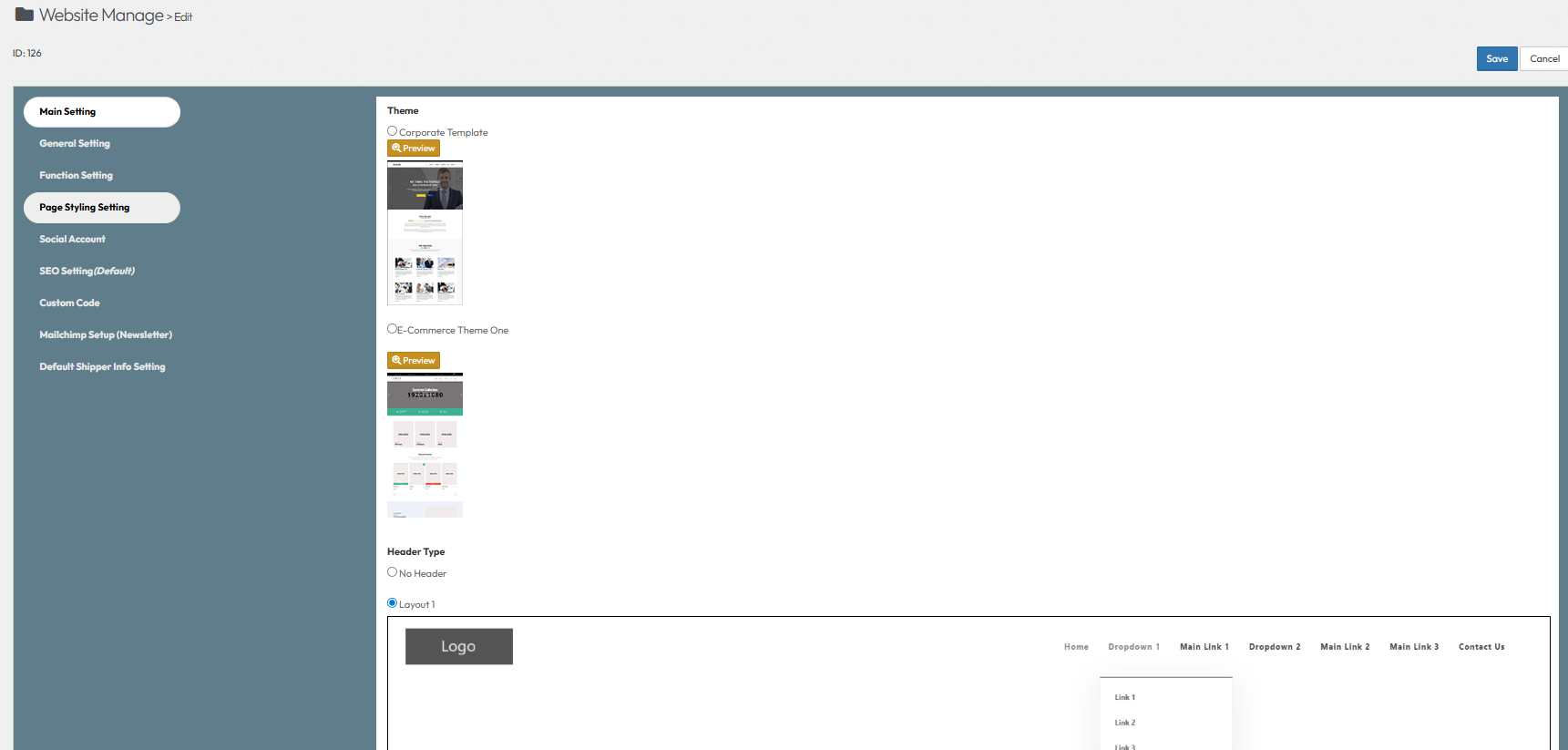
- Theme
- Select the visual design template for your entire website
- Options: Corporate Template, E-Commerce Theme One. (Includes a Preview button)
- Header Type
- Choose a layout style for your website header. You may also select "No Header" to disable it completely. Each header option includes an image preview.
- Slogan (EN)
- Enter the brand slogan or tagline in English.
- Slogan (ZH)
- Enter the brand slogan or tagline in Traditional Chinese.
- Slogan (CN)
- Enter the brand slogan or tagline in Simplified Chinese.
- Website Language
- Select the languages available on your website.
- Options: English, 繁體中文, 简体中文, Bahasa Malaysia. (Checkbox selection)
- Default Language
- Set the primary language that displays when a user visits the site for the first time.
- The dropdown menu will only display the languages selected in the "Website Language" section above.
2. Website Identity & SEO (Search Engine Optimization)
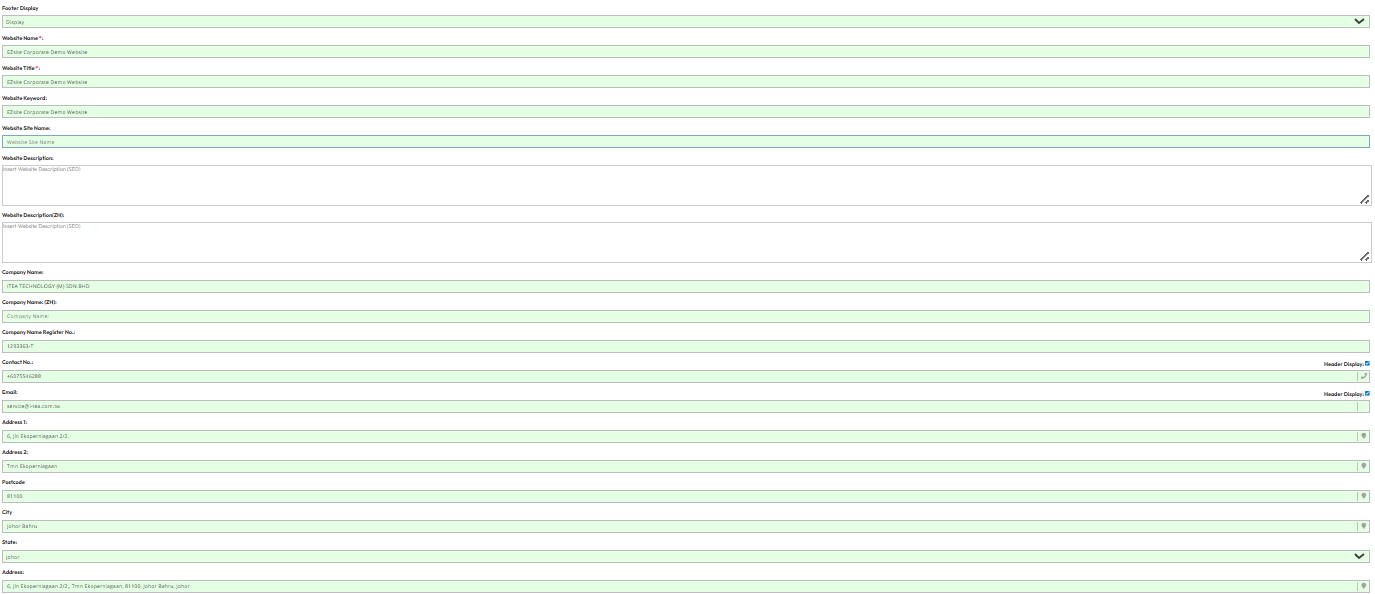
Website Name
- Enter the name of your website. This is often show on the browser tab title.
Website Title
- Enter the main SEO title for your homepage. This appears in search engine results and is crucial for ranking.
Website Keyword
- Enter relevant keywords separated by commas (e.g., "technology, solutions, corporate"). These help search engines categorize your site.
Website Site Name
- A short version of the website name, often used for logos or mobile headers.
Website Description
- Provide a brief summary of your website for search engine results (Max 160 characters recommended).
3. Company Information
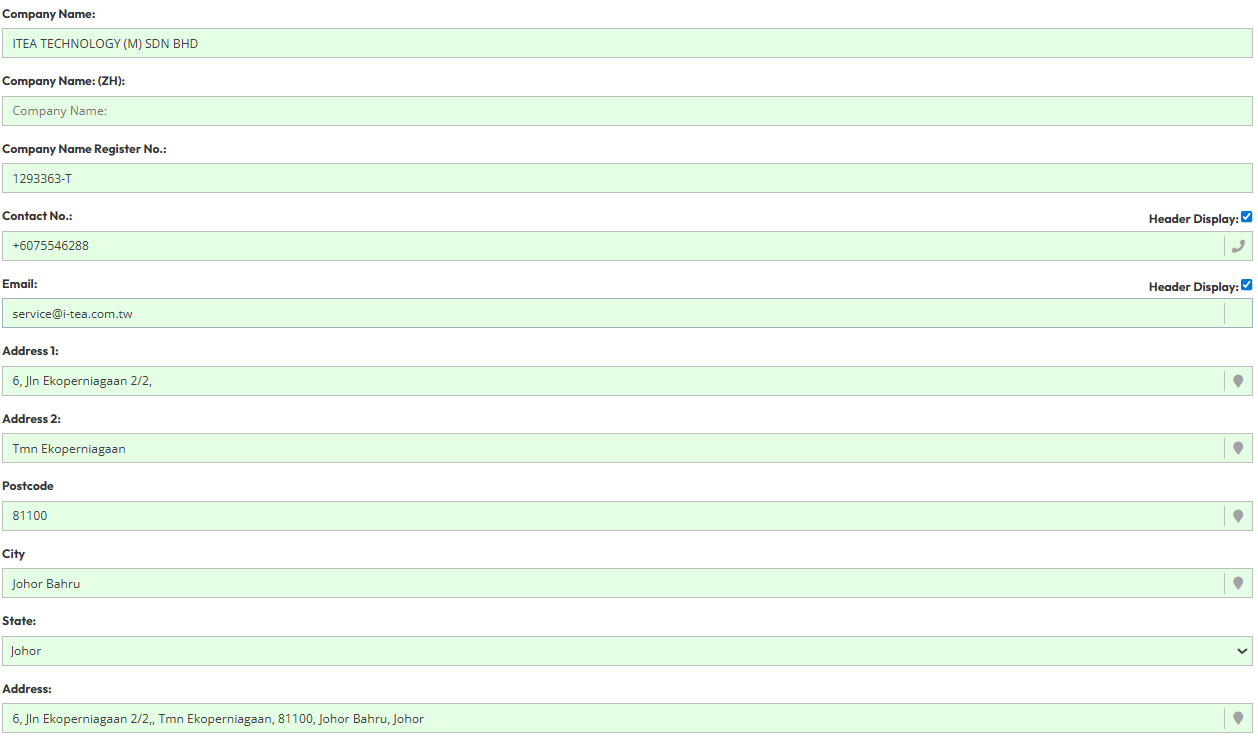
- Company Name
- Enter the official registered name of your company.
- Company Name Register No.
- Enter the business registration number (e.g., SSM number).
- Contact No.
- Enter the main phone number for customer inquiries.
- Enter the main email address for inquiries.
- Address Settings
- Address 1: Unit number, street name (e.g., 6, Jln Ekoperniagaan 2/2).
- Address 2: Area or building name (e.g., Tmn Ekoperniagaan).
- Postcode: Postal code (e.g., 81100).
- City: City name (e.g., Johor Bahru).
- State: State name (e.g., Johor).
4. Copyright Settings
Copyright Display
- Show the visibility of the copyright bar at the very bottom of the website.
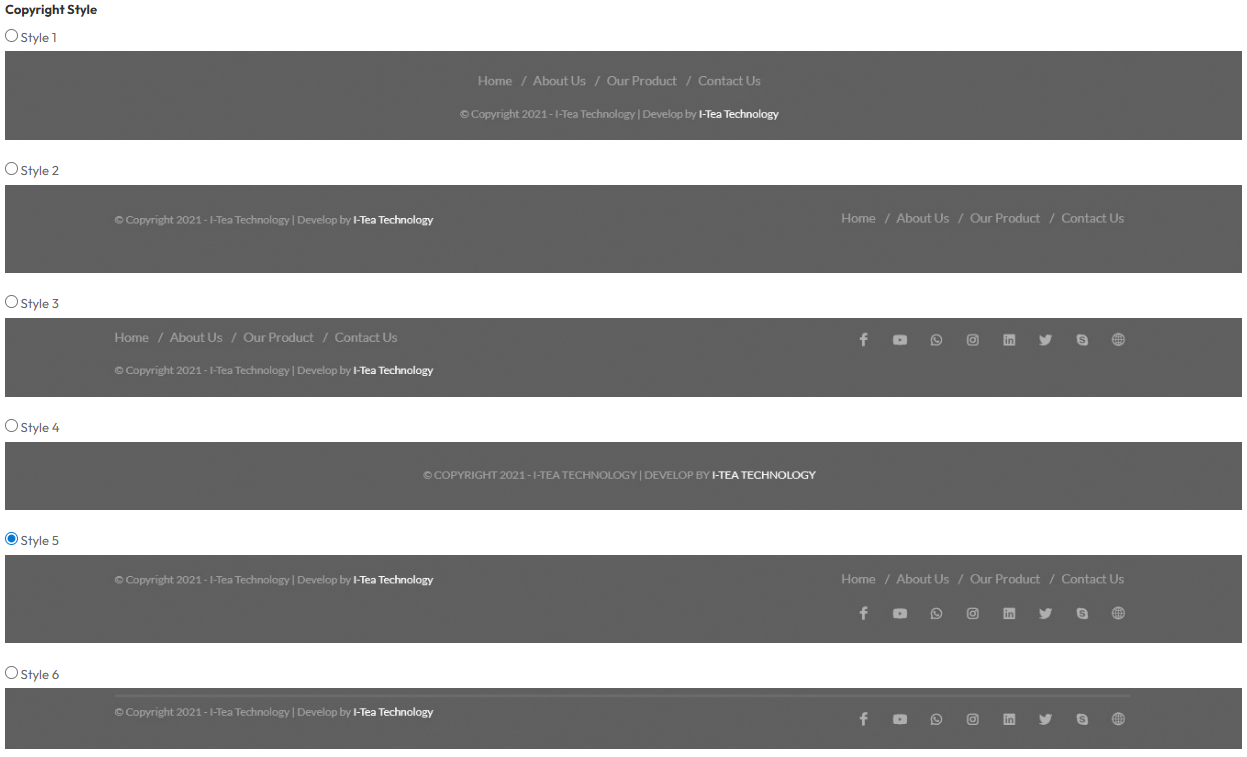
Copyright Style
- Select the visual design style for the copyright bar.
- Options: Style 1 through Style 8, or None. (Include preview image)
Footer Information
- Enter the copyright text that appears in the footer.
5. Domain & Technical Settings
How to Setup Your Domain Name- What is this?
- This is your website's address on the internet. It is what people type into their browser to find your website.
- How to fill it in:
- Type your address: Enter the domain name you own (e.g., corporatedemo.aipipis.com).
- Check for typos: Make sure there are no spelling mistakes.
- Save: Click the save button.
- Why does it take 24 hours to work?
- When you change your address, the internet needs time to "update the map" worldwide. It is like moving to a new house—it takes a little time for the post office and friends to learn your new location.

6. Analytics & Tracking
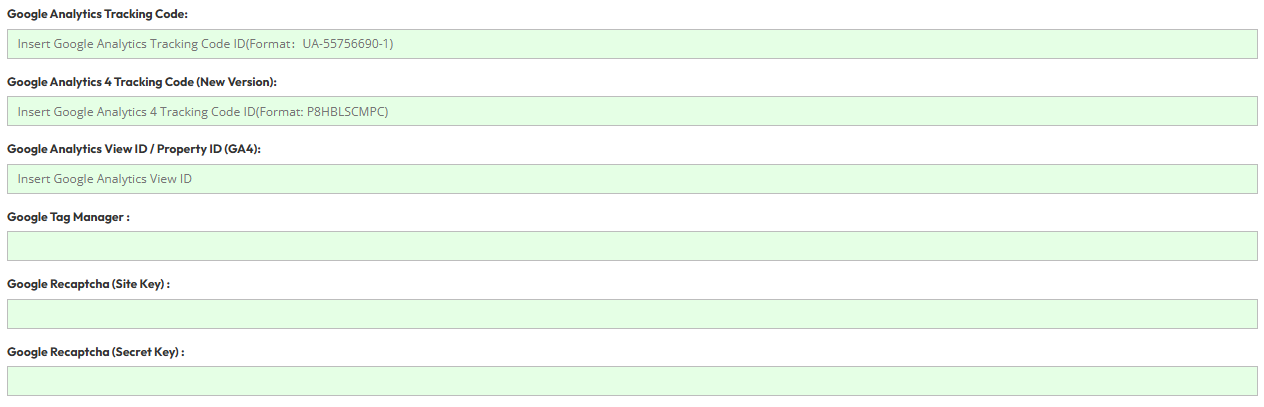
Integrate third-party tracking services to monitor website traffic and secure your forms.- Google Analytics Tracking Code (Legacy)
- Enter the Universal Analytics Tracking ID.
- Format: UA-XXXXXXXX-X (e.g., UA-55756690-1).
- Google Analytics 4 Tracking Code (New Version)
- Enter the Measurement ID for the latest version of Google Analytics.
- Format: G-XXXXXXXXXX (e.g., G-P8HBLSCMPC).
- Google Analytics View ID / Property ID (GA4)
- Enter the specific View ID or Property ID for detailed reporting configuration.
- Google Tag Manager
- Enter the Google Tag Manager Container ID to deploy marketing tags without editing code.
- Format: GTM-XXXXXXX.
- Google Recaptcha (Site Key) :
- Enter the public "Site Key" provided by Google. This key is used to display the security verification widget on your website forms.
- Google Recaptcha (Secret Key) :
- Enter the private "Secret Key" provided by Google. This key allows your website server to communicate with Google to verify the user's response.