
Part 1: Google Analytics
How to Setup Analytics & Tracking- What is it? A tool that tracks who visits your website and what they click on. It is essential for growing your business.
- Do I need it? Yes. It is free and required to see your visitor data.
- Which code do I use? Look at the code Google gave you:
- New Version (GA4): If the ID starts with G- (e.g., G-XXXXXXXXXX).
- Legacy Version: Only use this if you have had your account for many years and the ID starts with UA-.
- How to get the code:
- Log in to Google Analytics.
- Click Admin (the gear icon) at the bottom left.
- Click Data Streams > select your website.
- Copy the Measurement ID (starts with G-).
Part 2: Google Tag Manager
How to Setup Tracking Codes- What is it ? A central dashboard that manages all your tracking codes (like Facebook Pixel or Analytics) in one place.
- Do I need it ? Optional. If you are just starting out, you can skip this. You only need it if you plan to use many different marketing tools.
- How to get the code:
- Log in to Google Tag Manager.
- Find your Container ID on the main dashboard (starts with GTM-).
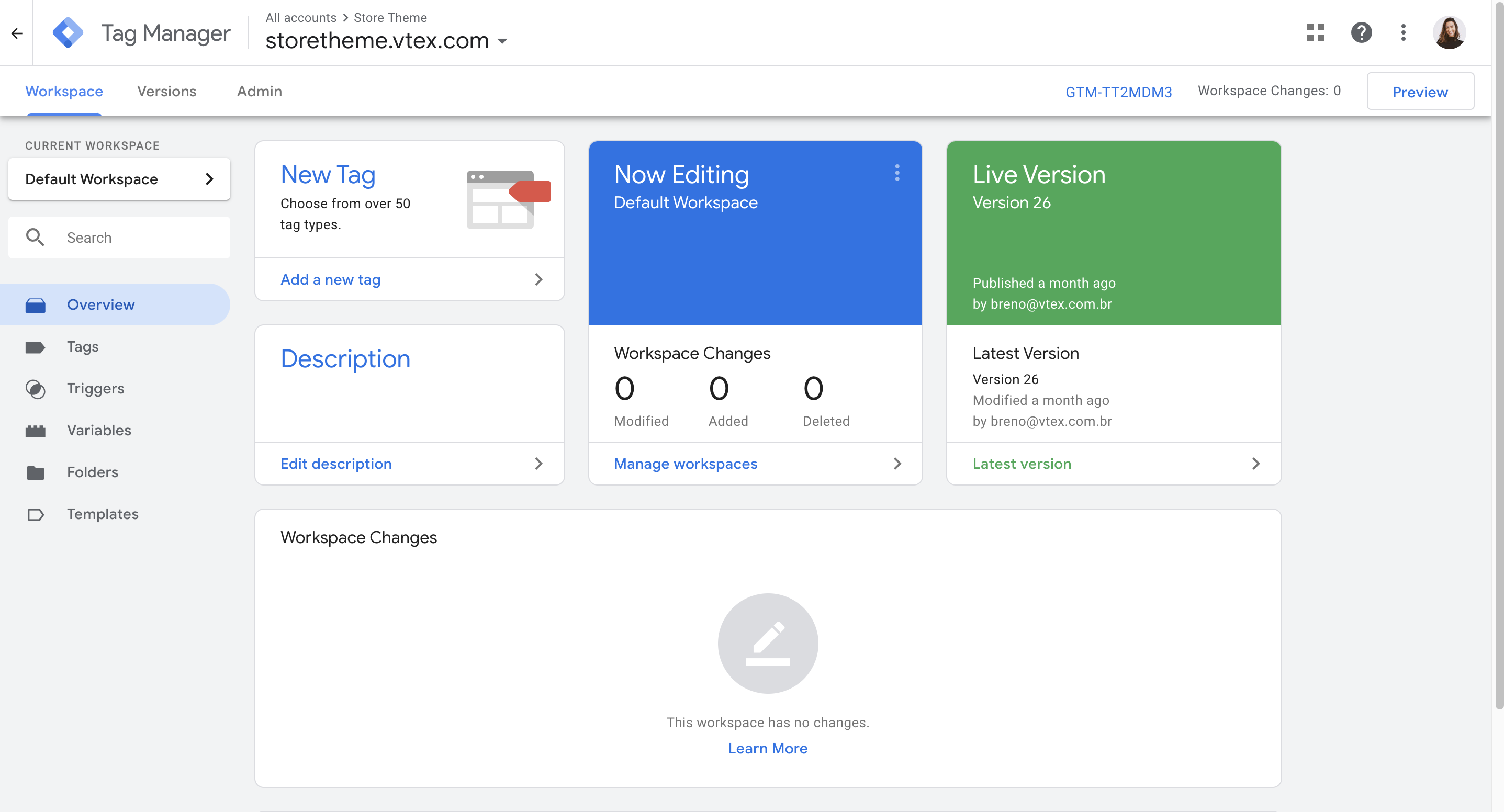
Part 3: Google reCAPTCHA
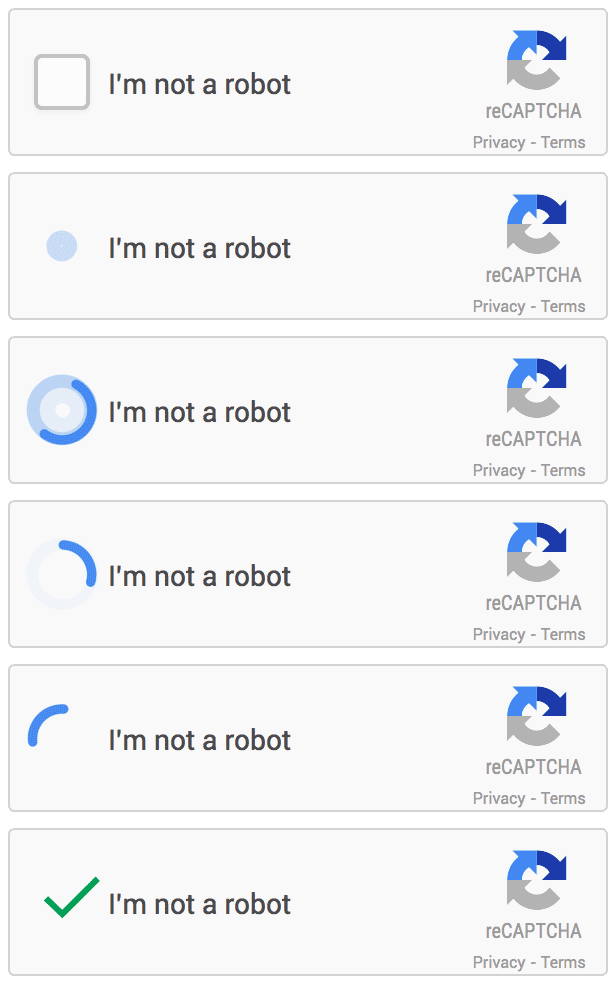
How to Setup Spam Protection- What is it? A security check that stops spam bots from sending fake messages through your "Contact Us" forms.
- Do I need it? Highly Recommended. Without it, your inbox will likely be filled with spam.
- How to get the keys:
- Go to the Google reCAPTCHA Admin console.
- Register your website domain name.
- Google will give you two codes. You need both:
- Site Key: This is the public key. Paste this into the "Site Key" box above.
- Secret Key: This is the private key. Paste this into the "Secret Key" box above.
Part 4: Google reCAPTCHA (Video tutorial)
No valid video source provided.