Social Account

Connect your social media profiles and messaging tool (like WhatsApp, WeChat, and Facebook). This allows visitors to easily reach out and follow your business.

Website Settings
Social Media Contact Us Links
Last Updated: March 31, 2026
Block Image

Section 1 : Message Us Button

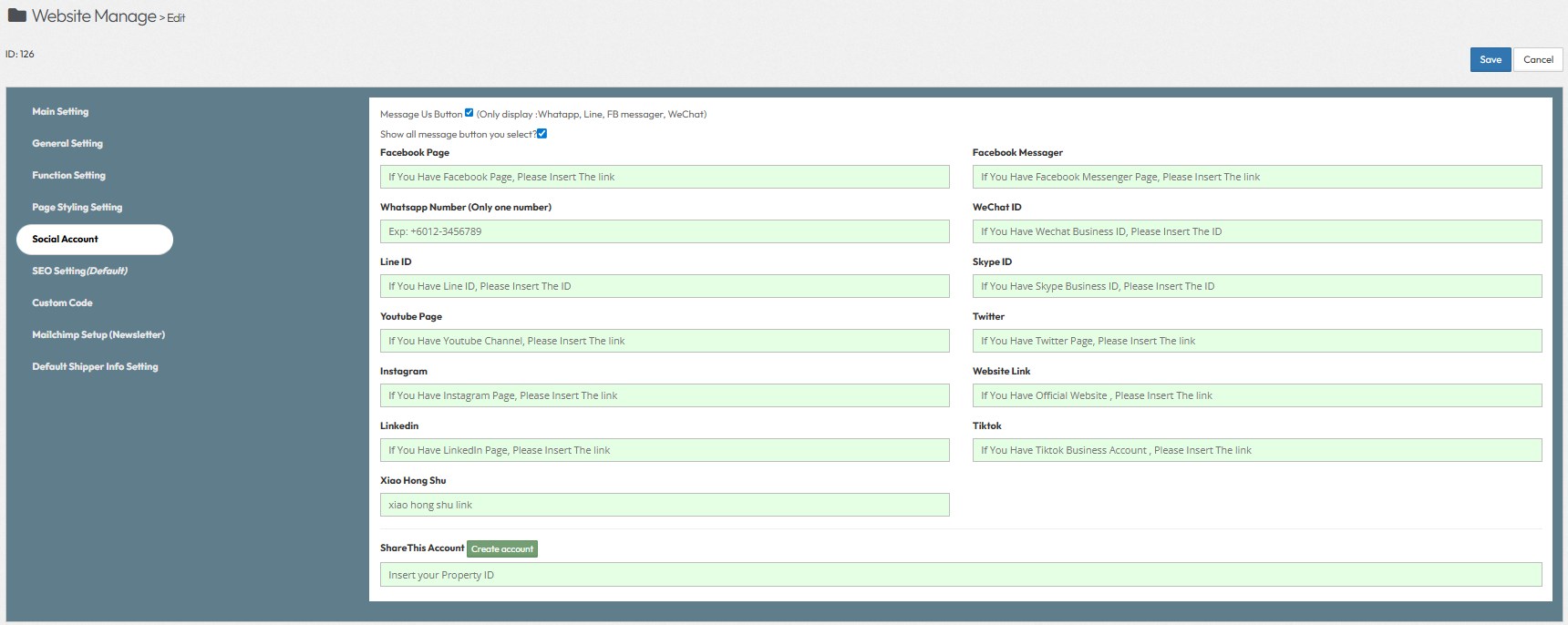
1. Message Us Button : Enable a floating contact widget on the website. This feature allows visitors to quickly contact you via their preferred messaging app. (Note: This widget only displays WhatsApp, Line, FB Messenger, and WeChat).

2. Show all message button you select?: To determine if all the messaging apps you configured above (WhatsApp, Line, FB Messenger, WeChat) are displayed simultaneously on the floating widget.

3. Facebook Page: Insert the URL to your official Facebook business page. This link is typically used in the footer or social media icons section.

4. Facebook Messenger: Input the specific link for your Facebook Messenger channel to enable direct chat functionality within the Message Us widget.

5. Whatsapp Number: Enter the business WhatsApp number for the chat button. This allows users to start a conversation with you directly on WhatsApp. (e.g., +6012-3456789)

6. WeChat ID: Provide your WeChat Business ID. This allows users to add your contact or chat via WeChat.

7. Line ID: Provide your Line ID to allow customers to contact you through the Line messaging application.

Section 2: Social Media & External Links

1. Skype ID: Input your Skype Business ID to allow users to contact you via Skype calls or chat.

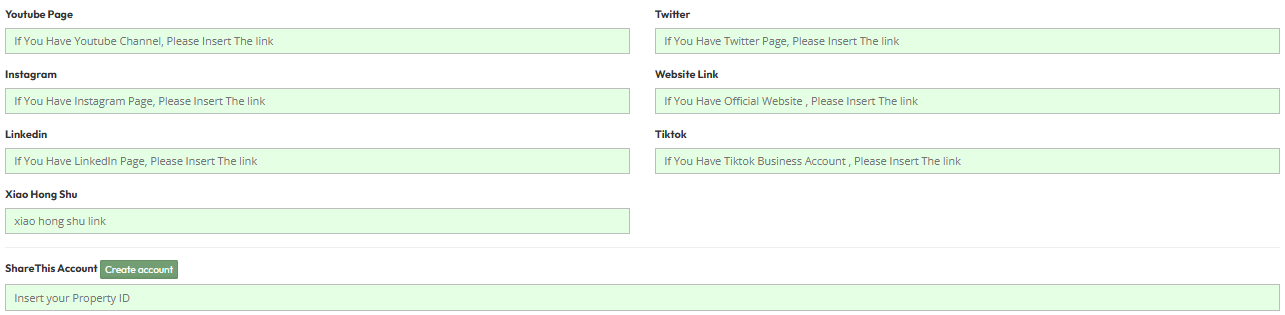
2. Youtube Page: Insert the link to your YouTube channel to direct visitors to your video content.

3. Twitter: Insert the link to your Twitter profile.

4. Instagram: Insert the link to your Instagram profile.

5. Website Link: Insert a link to an external official website or a separate microsite if applicable.

6. LinkedIn: Insert the link to your company LinkedIn profile.

7. Tiktok: Insert the link to your TikTok business account.

8. Xiao Hong Shu: Insert the link to your Xiao Hong Shu (Little Red Book) profile page.

9. ShareThis Account: Integrate your ShareThis account to enable social sharing buttons on your website content. (Enter API Key / ID Input Field). 

  • You can also click "Create Account" to be redirected directly to the official ShareThis website (https://sharethis.com/) to register for a new account.
Block Image

FAQ

Find answers here.

Linking your accounts serves two main purposes: it allows you to display social media icons in your website's header or footer, and it helps validate your Open Graph (OG) metadata when your links are shared on those platforms.

No. You only need to provide the public URL to your social media profiles (e.g., `https://facebook.com/yourbrand`). No login credentials or passwords are required or stored.

Properly linked accounts help platforms like Facebook and Twitter verify your domain, which can result in larger, richer link previews when your pages are shared.