Section 1: Global Typography
- Website Font Setting : Select the primary font family used throughout the website. A "Google Web Font" button is available to easily choose and apply fonts from the Google Fonts library.
- How to use the Google Web Font button:
- Click the Google Web Font button to open the external Google Fonts library in a new tab.
- Browse the website and find a font style you like for your website.
- Copy the exact name of the font (e.g., "Poppins", "Montserrat").
- Go back to this settings page and type or paste that exact font name into the Font Selection box.
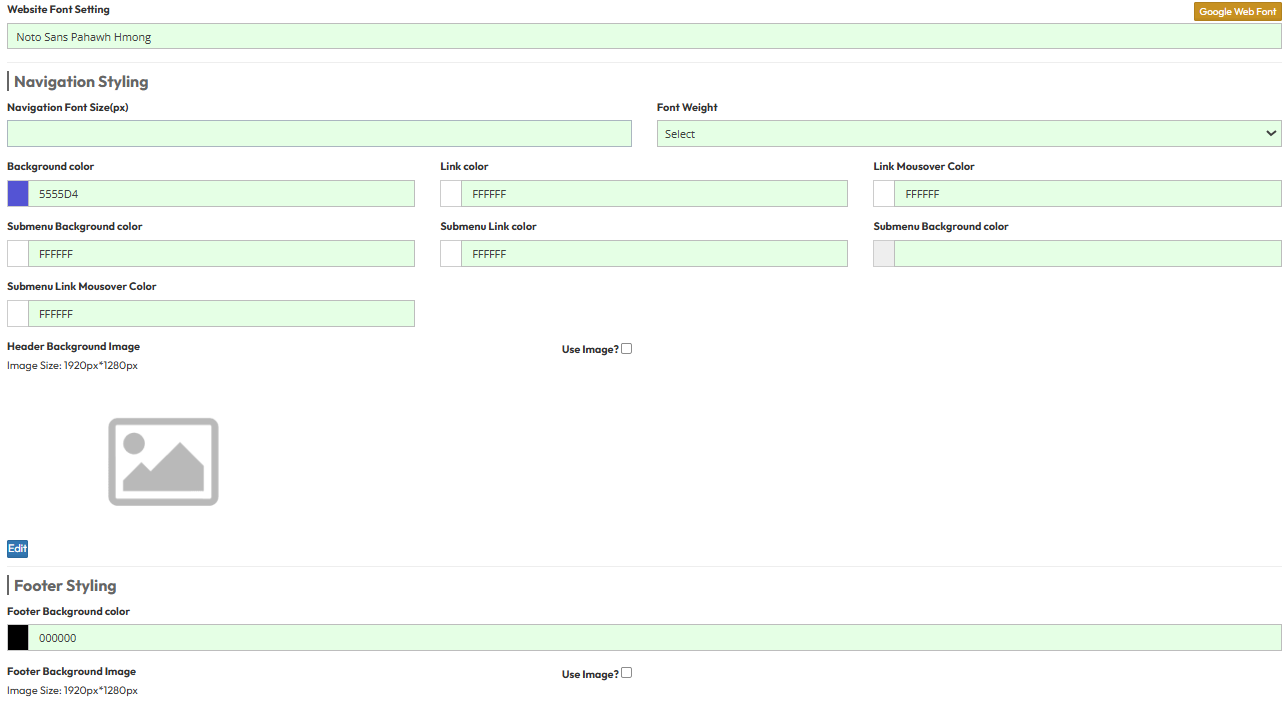
Section 2: Navigation Styling
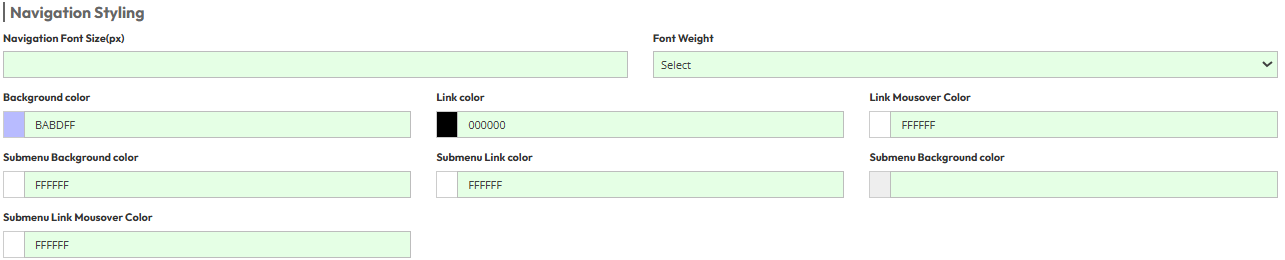
1. Navigation Font Size & Font Weight: Define the typography for the main navigation menu. Adjust the text size (in pixels) and select the font weight (options ranging from 100-900, including lighter, normal, and bold) to control the text thickness and visual impact.
2. Navigation Styling: Customize the color scheme of the main navigation bar. Configure the following settings to match your brand style:
- Navigation Background Color: Sets the background color of the main navigation bar container.
- Navigation Link Color: Defines the default text color for the main menu items.
- Navigation Link Mousover Color: Defines the text color when a user moves their cursor over a menu link.
3. Submenu Styling: Configure the visual appearance of the dropdown menus. Adjust the colors below to ensure clear hierarchy and interactive feedback:
- Submenu Background Color: Sets the background color of the dropdown container.
- Submenu Link Color: Defines the default text color for items inside the submenu.
- Submenu Link Mousover Color: Defines the text color when a user hovers over a submenu item.
Section 3: Header Settings and Footer Styling
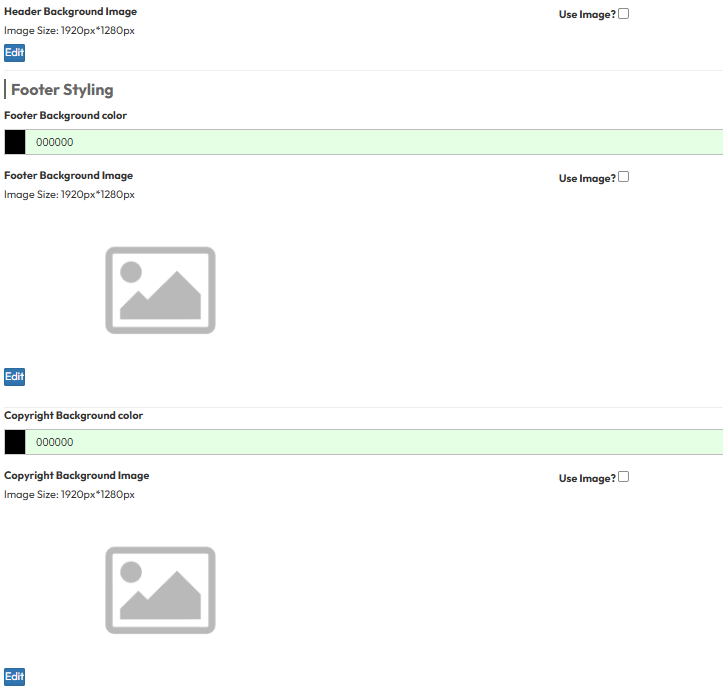
1. Header Background Image: Customize the header area by setting a visual background. You can toggle the feature on or off and upload an image file to display behind the header content.
- Use Image?: Toggle to enable or disable the background image.
- Upload Image: Select a file (Recommended Size: 1920px * 1280px).
2. Footer Section : Define the visual style for the main footer section. You can choose to fill it with a solid color or upload a custom image to match your website's design theme.
- Footer Background Color: Select a color using the Color Picker.
- Use Image?: Toggle to enable a background image.
- Footer Background Image: Select a file (Recommended Size: 1920px * 1280px).
3. Copyright Section : Configure the appearance of the bottom-most copyright bar. This section can be styled independently from the main footer to create a distinct visual separation.
- Copyright Background Color: Select a color using the Color Picker.
- Use Image?: Toggle to enable a background image.
- Footer Background Image: Select a file (Recommended Size: 1920px * 1280px).
4. Footer Text Colors: Adjust the text colors within the footer area to ensure readability and visual hierarchy against the background. Configure colors for titles, content, and copyright text separately.
- Footer Title Color: Color for section headings.
- Footer Content Color: Color for general text and links.
- Copyright Content Color: Color for the copyright notice text.
Section 4: Blog Page Settings
Blog Detail Setting: Configure the background color for the individual blog post detail pages.
