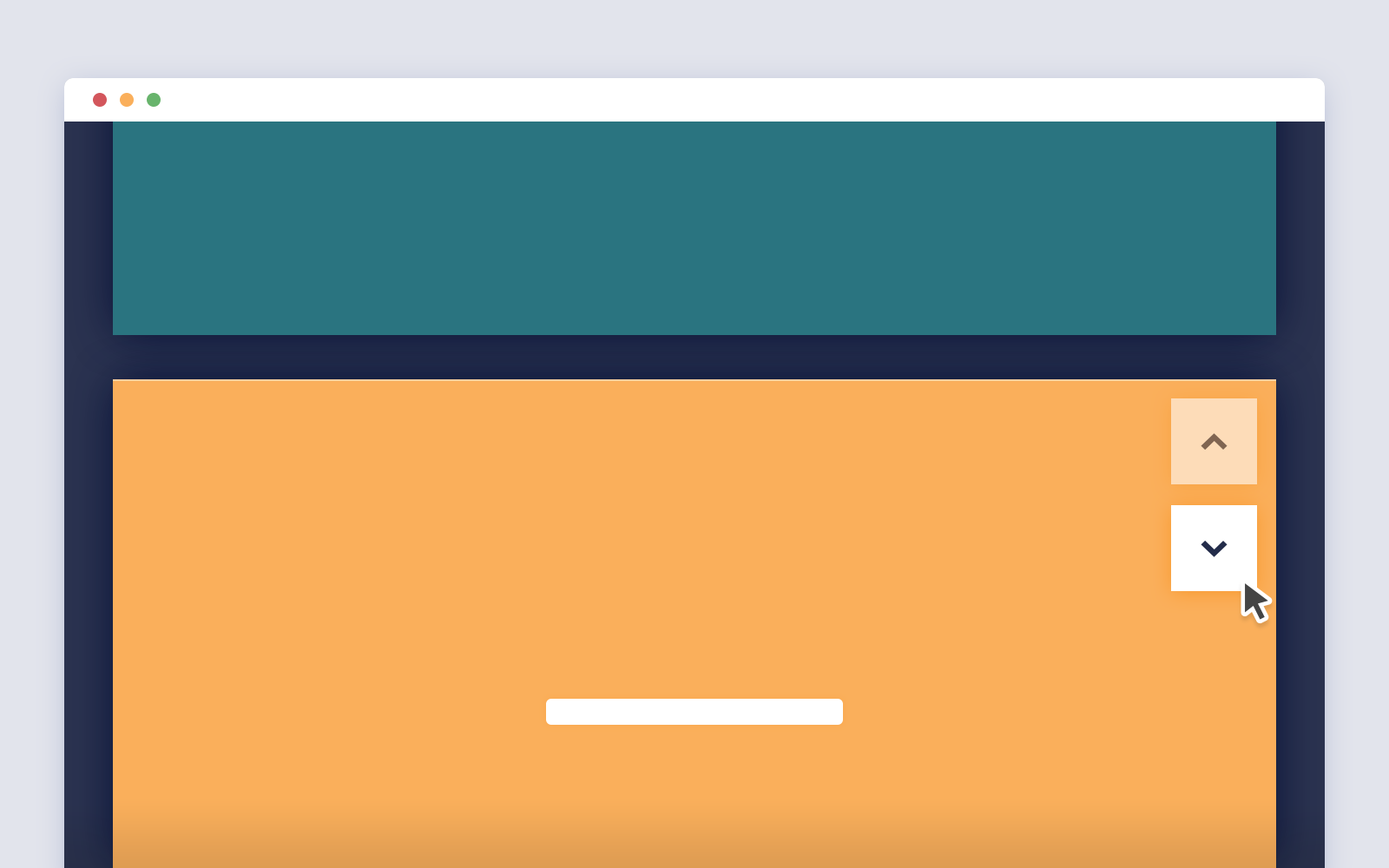
Part 1: Scroll Flip Effect Overview
Section Type: Scroll Flip EffectScroll Flip Effect adds dynamic, interactive animations to your page. As the user scrolls down, content blocks "flip" or animate into view one by one. It supports flexible layout options, allowing you to mix text-only blocks with image-and-text blocks within the same sequence, creating a varied and engaging storytelling experience.
Key use cases:
- Step-by-Step Guides: Perfect for processes, tutorials, or timelines where you want to reveal information progressively as the user scrolls.
- Interactive Storytelling: Use this to keep users engaged by forcing them to scroll to see the next part of the story, reducing bounce rates.
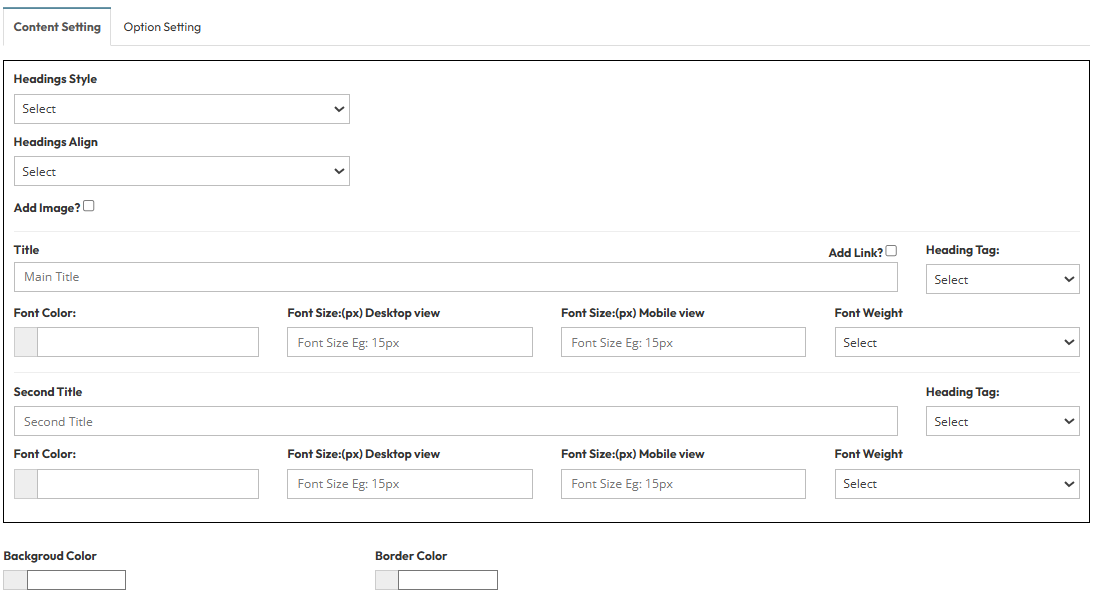
Step 1: Scroll Flip Configuration
Configure the global styling and manage your animated content blocks using the settings below.A. Global Visual Settings
- Headings Style & Alignment: Configure the main title and subtitle style, including Font Color, Size, and Weight.
- Background Color: Select the background color for the entire section.
- Border Color: Define the border color for the content containers to separate them visually.
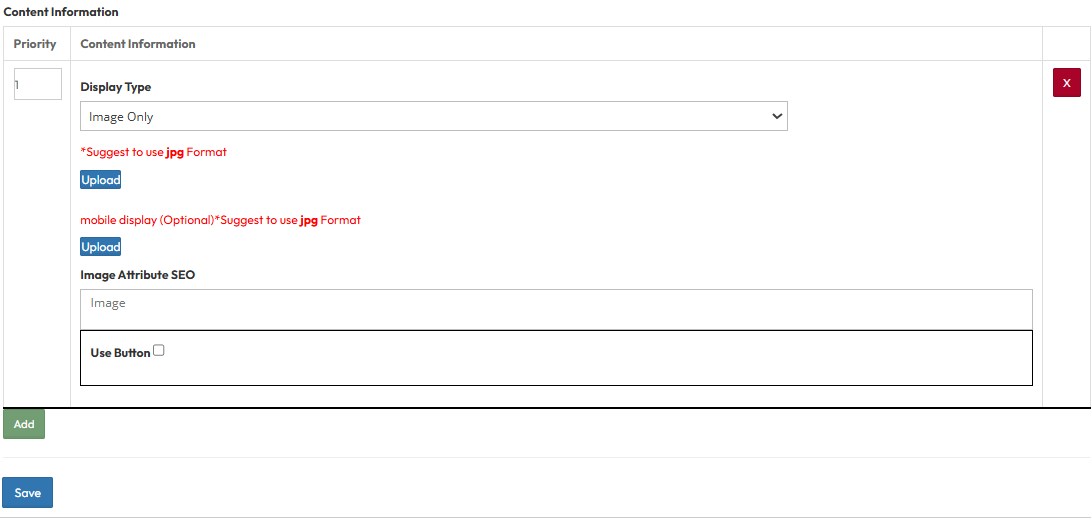
Step 2: Scroll Flip Effect (Content Information)
B. Content Item Management- Priority / Order: Enter a number to set the sequence of the animation (e.g., 1, 2, 3).
- Display Type: Choose the layout for this specific item.
- Content Only: Text only, no image.
- Image Only: Image only , no text.
- Left Content | Right Image: Displays text on the left and an image on the right.
- Right Content | Left Image: Displays text on the right and an image on the left.
- Image Attribute SEO: Fill in Alt Text and Title attributes.
- Description: Enter the main text content.
- Use Button:
- Button Title: Enter the button text.
- Link: Enter the destination URL.
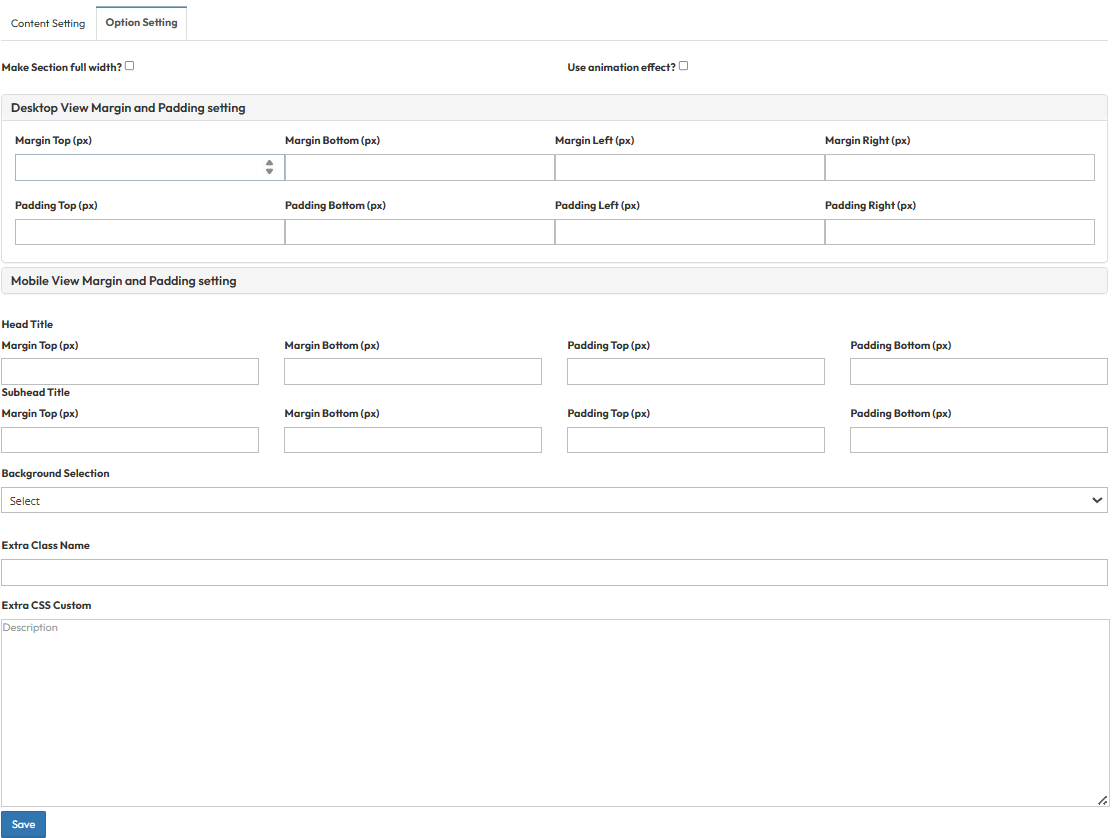
Step 3 : Global Option Setting
These settings control the layout container and spacing.- Make Section full width?
- Stretches content to the screen edges.
- Use animation effect?
- Enable fade-in or slide-up animations when scrolling to this section.
- Desktop View Margin and Padding:
- Adjust external (Margin) and internal (Padding) spacing for Top/Bottom and Left/Right.
- Mobile View Margin and Padding:
- Adjust spacing values specifically for mobile devices.
- Head Title & Subhead Title:
- Adjust the spacing (Margin) above and below the Main Title and Subtitle text.
- Background Selection:
- Default: Uses the standard site background.
- Background Color: Fills the section with a solid color.
- Background Image: Upload an image (Recommended size: 1920x500px).
- Parallax Effect?: Toggle Yes to create a 3D scrolling effect.
- Background Image with Color: Combines an image with a colored overlay.
- Opacity (1-0.1): Controls the overlay strength (1 = Solid color, 0.1 = Mostly image).
- Extra Class Name:
- Enter a custom CSS class name for specific styling.
- Extra CSS Custom:
- Paste custom CSS code to override default styles.