Part 1: Product Catalog Overview
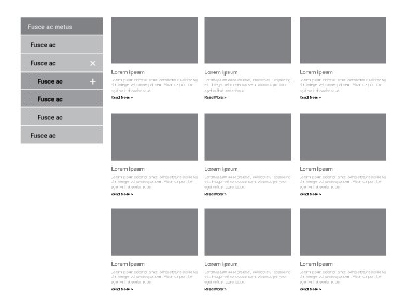
Section Type: Product CatalogThis section dynamically displays your products or services in a grid or list format. It connects to the backend Catalog Management system to pull product data, categories, and filtering options. It supports advanced features like Quick Search, Category Grouping, and detailed product attributes (like pricing or service types).
Key use cases:
- E-commerce Catalog: Display products for sale with images, prices, and "Add to Cart" or enquiry buttons.
- Portfolio Showcase: Use it to display creative work categorized by type (e.g."Branding").
Part 2 : How to Configure Your Section
Our backend system provides a comprehensive set of tools to customize your content blocks. Follow these steps to set up your layout perfectly:
.png](https://res.cloudinary.com/dbd4ngy1m/image/upload/v1773298188/media_library/php8522_cussrk.png)
Step 1: Product Category Group Setup
Before adding products, you must define the categories to organize them.Navigation: Go to Data List > Product Catalog > Catelog Category List
- Category Tree Structure:
- Drag and drop categories to set them as Parent or Level 1 Subcategory.
- Category Node Edit Fields:
- Link Title: Enter the name of the category.
- Catalog Description: Add a brief description for the category archive page.
Step 2 : Product Catelog Manage
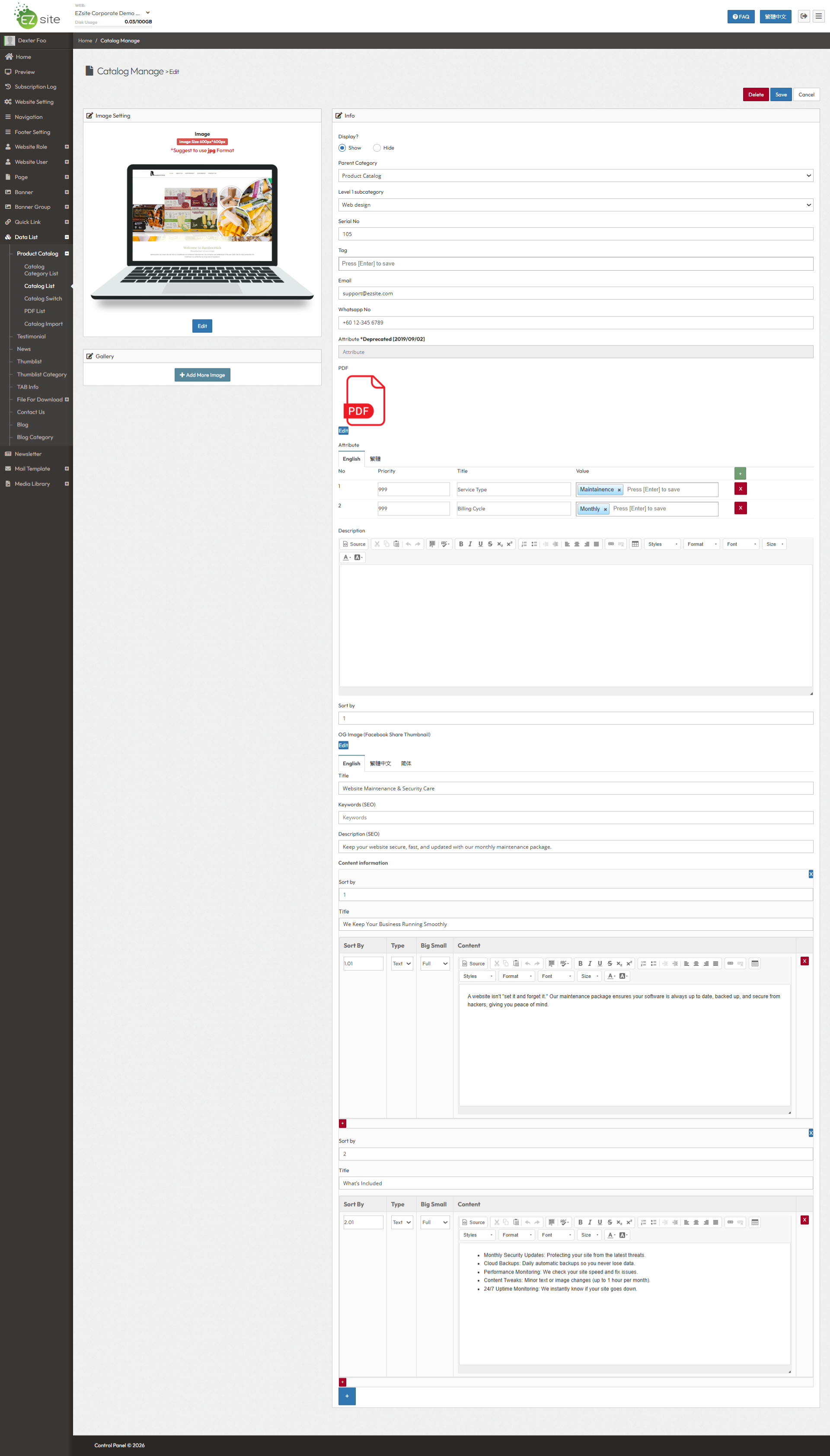
Once categories are set, add your individual products.Navigation: Go to Sidebar > Catalog Manage > Add New / Edit.
A. Basic Info & Display
- Display?: Toggle to Show or Hide the product.
- Parent Category : Select the top-level main category (e.g., "Services") that this product belongs to.
- Level 1 Subcategory: Select the specific sub-category under the parent category (e.g., "Web Design" under "Services").
- Serial No: Enter a number (e.g., 1, 2, 3) to define the sorting order. Products with lower numbers will appear first in the list.
- Tag: Add relevant keywords or labels (e.g."Best Seller") to help users filter products.
B. Contact & Attributes
- Email: Enter the contact email for this specific product (e.g., support@ezsite.com).
- Whatsapp No: Enter the WhatsApp contact number.
- Attribute: Define custom product features .
- Examples: Service Type (Maintenance), Billing Cycle (Monthly).
C. SEO Settings:
- OG Image: Upload a specific thumbnail for social sharing.
- Title: Product Page Title.
- Keywords (SEO): Focus keywords for search engines.
- Description (SEO): Brief summary for search engine results.
D. Content Information
- Sort by: Order of appearance.
- Title: Heading for the text (e.g., "What’s Included").
- Type: Text / Image / Video / HTML.
- Big Small: Full width / Half / Quarter.
- Content: Add detailed descriptions using "Text" blocks.
Step 3 : Product Catelog (Content settings)
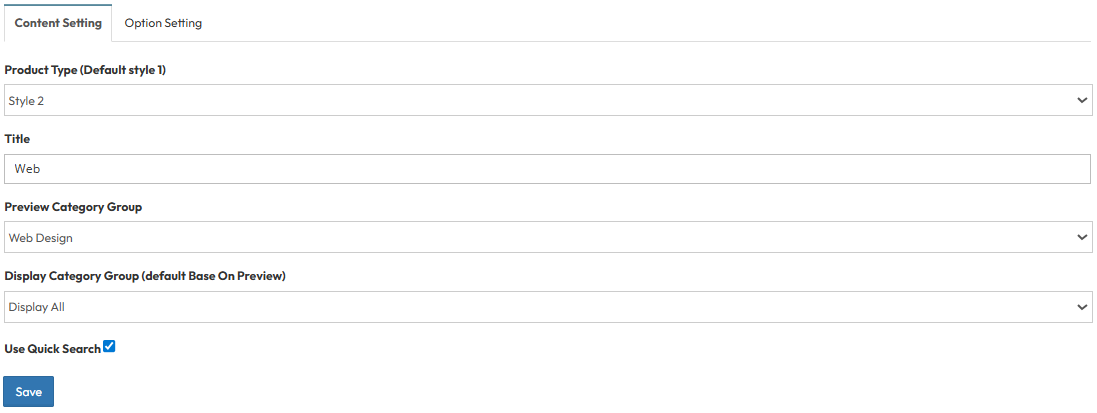
Configure how the catalog section appears on the page.Product Type: Select the layout style. [Style 1 (Default) , Style 2]
Title: Enter the main heading for the section.
Preview Category Group: Select which category group to use for the initial preview.
Display Category Group: Determine how categories are shown.
- Display All: Shows all products regardless of category.
- Base On Preview: Filters based on the preview selection.
Use Quick Search: Enable a search bar for users to find products instantly.
Step 4 : Global Option Setting
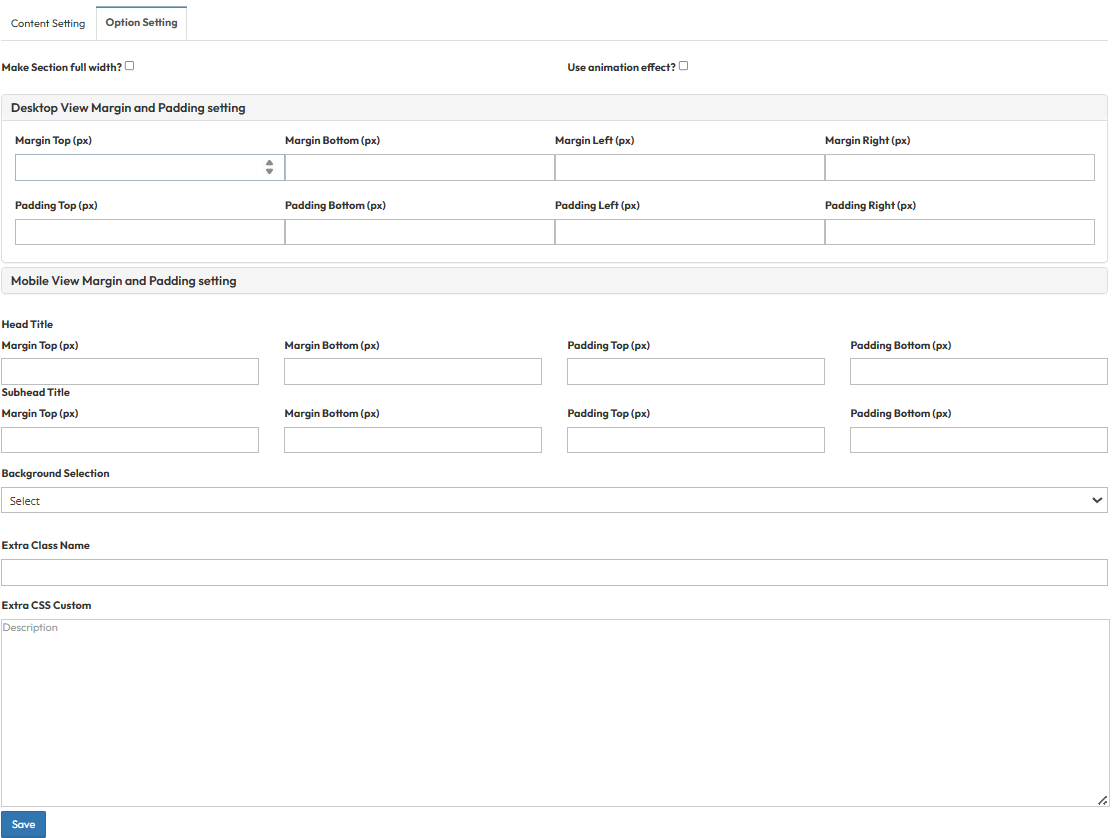
These settings control the layout container and spacing.Make Section full width?
- Stretch content to the screen edges (Yes) or keep it centered in a container (No).
Use animation effect?
- Enable fade-in or slide-up animations when scrolling to this section.
Desktop View Margin and Padding setting
- Adjust external (Margin) and internal (Padding) spacing for Top/Bottom and Left/Right to control layout distances.
Mobile View Margin and Padding setting
- Adjust spacing values specifically for mobile devices to fit smaller screens.
Head Title & Subhead Title
- Adjust the spacing (Margin) above and below the Main Title and Subtitle text.
Background Selection
- Choose a solid background color, upload an image, or select a default style.
Extra Class Name
- Enter a custom CSS class name to apply specific styles.
Extra CSS Custom
- Paste custom CSS code here to override default styles for this section.