Part 1: Visual Layout Overview
Section Type: Left Image Right Content or Right Image Left Content
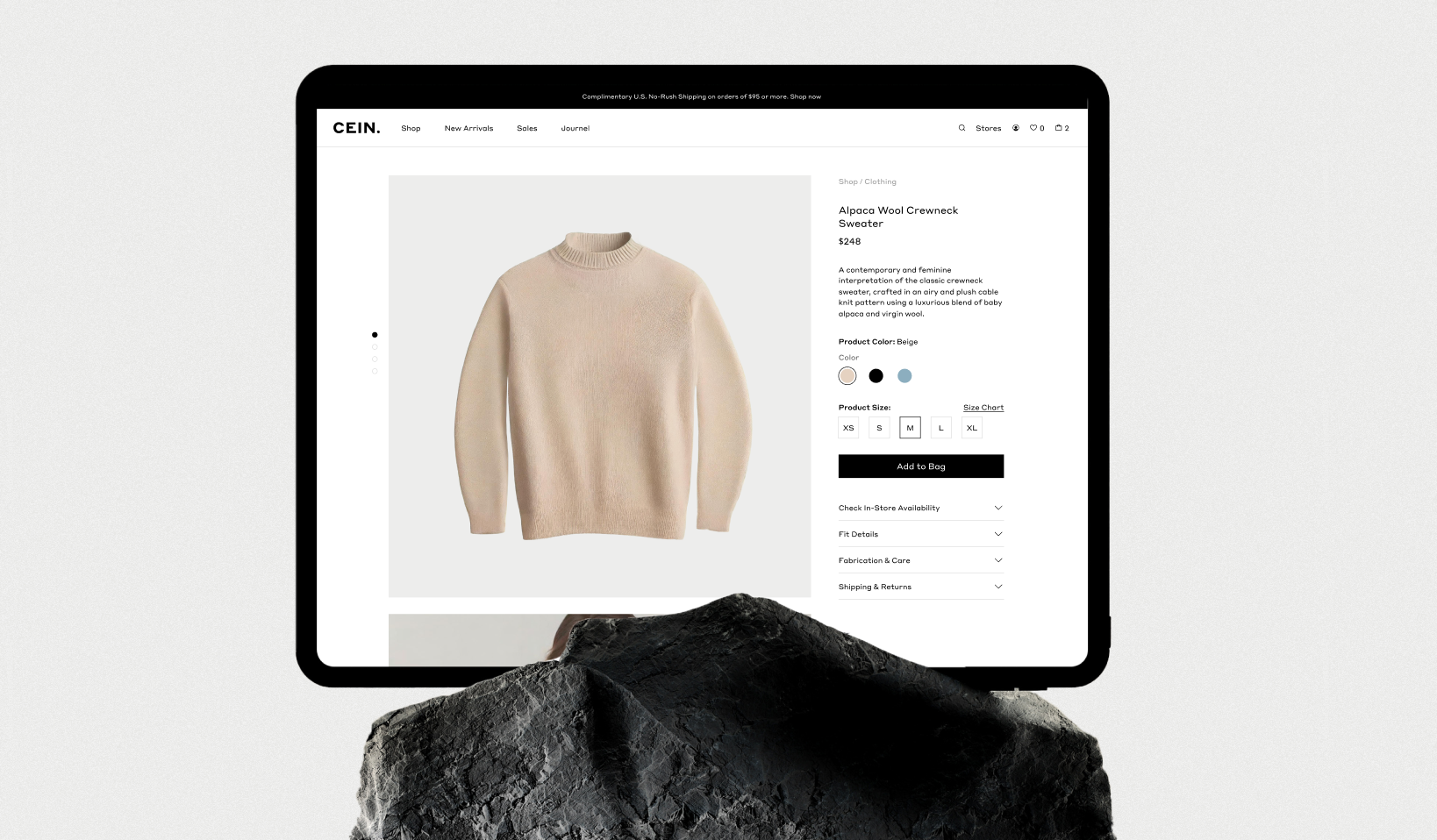
Option A: Left Image Right Content
Image on the left, content on the rightThis is the most commonly used layout. It works well for introductions, features, or storytelling. The image captures the user’s attention first, guiding the eye to the text on the right for more details.
Best for:
- Product Display
- Features Highlights
Option B: Right Image Left Content
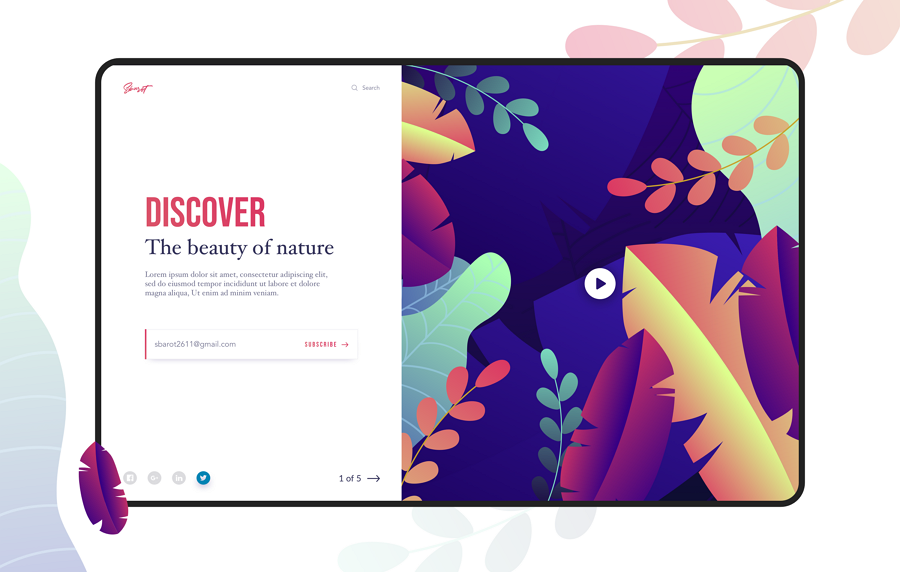
Image on the right, content on the leftThis layout offers a dynamic break in the visual flow, making it perfect for breaking up repetitive layouts. The image on the right encourages users to pause and engage more thoughtfully with the text on the left.
Best for:
- Storytelling
- Educational Content
Part 2 : How to Configure Your Section
Our backend system provides a comprehensive set of tools to customize your content blocks. Follow these steps to set up your layout perfectly:
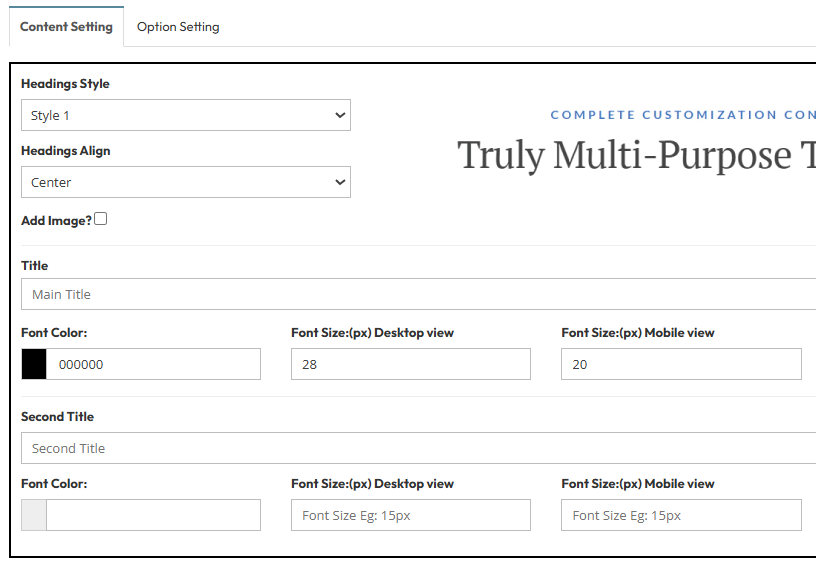
Step 1: Define Your Headings (Content Settings)
Start by establishing a clear text hierarchy.- Title: Set a bold, centered title (e.g., H2 tag) to grab attention. You can adjust the font size (e.g. 28px on desktop) and color (Black #000000) to match your brand.
- Second Title: Add a second title below the main title to provide context or summarize the section.
- Heading Style & Alignment: Select a heading style from the 8 available options (e.g. Style 1). For the Header Alignment, choose Center to position the text in the middle (options include Left, Center, or Right).
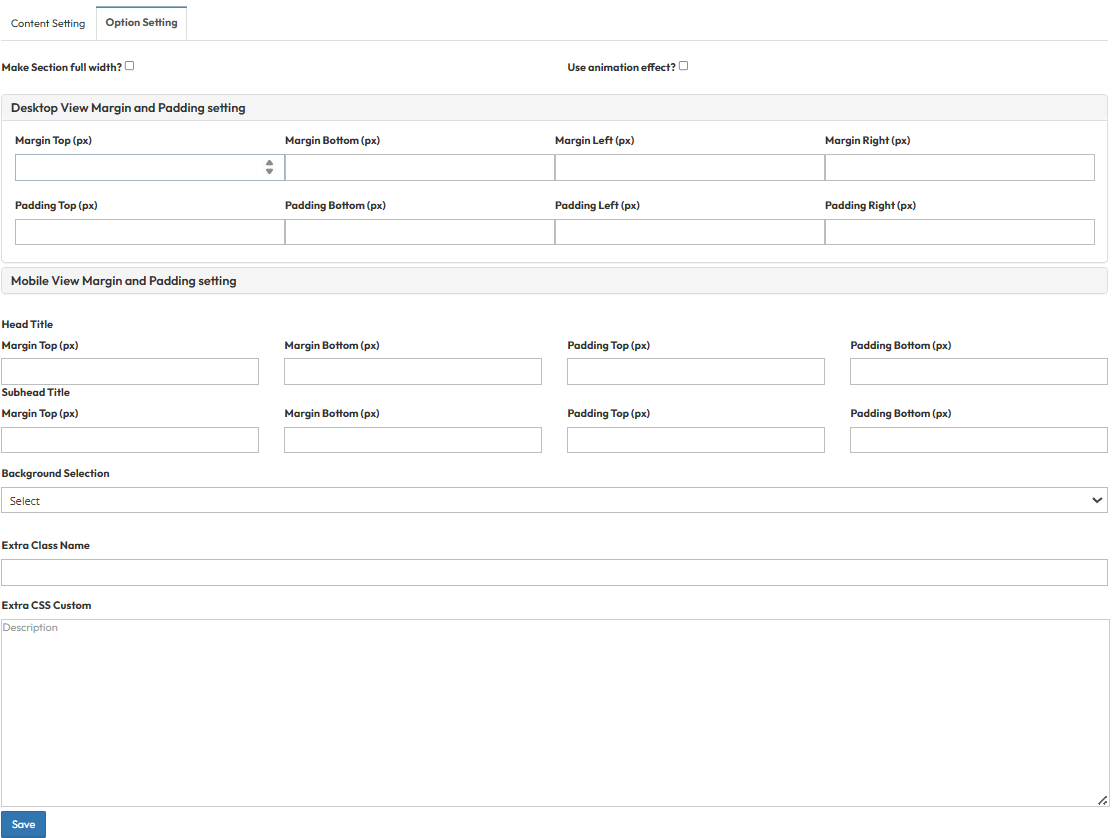
Step 2: Adjust Style & Spacing (Option Settings)
Fine-tune the appearance and breathing room of your section.- Background Selection: Choose a background style. Options include Default, Background color (e.g., White #FFFFFF), Background Image, or Background Image with Background color overlay
- Spacing (Padding): Adjust the internal spacing (e.g., 60px on desktop, 30px on mobile) to prevent text from hitting the edges.
- Margins: Set external spacing (e.g., 50px bottom margin) to separate this section from the next part of your website.
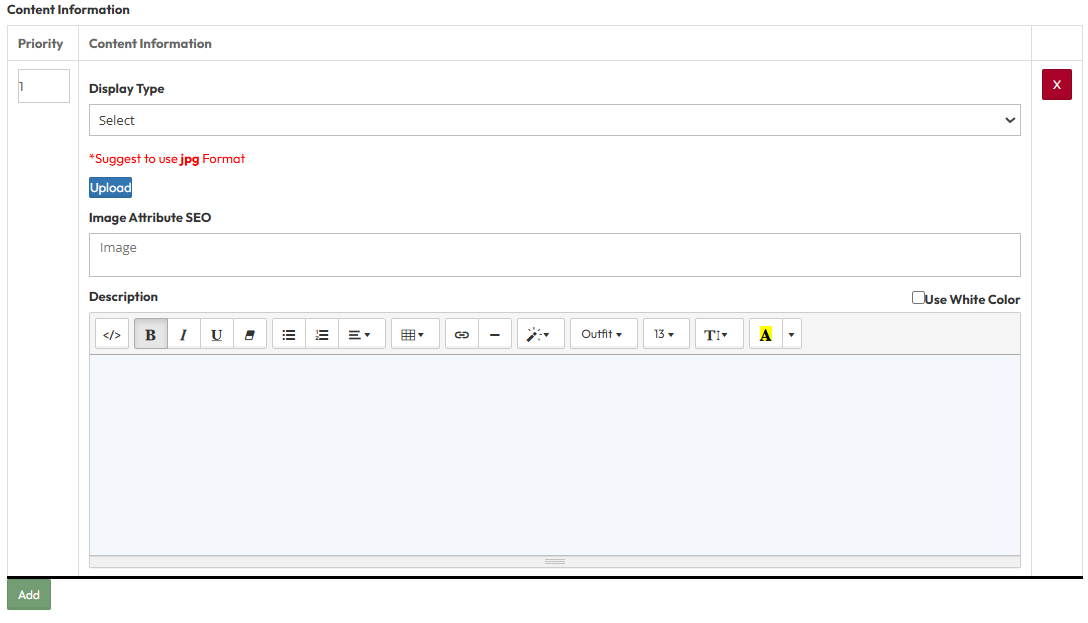
Step 3: Choose Layout & Upload Media (Content Information)
Decide how you want to structure your visual elements.- Display Type: Choose between Option A (Left Image | Right Content) or Option B (Right Image | Left Content) based on your content type.
- Upload Image: Select a JPG image to display. (Recommended)
- SEO Settings: Don't forget to fill in the Image Attribute SEO to help search engines understand your content.
- Description: Add your main body text. Use the text editor to format paragraphs, add bullet points, and ensure readability.