Part 1: Customized Breadcrumb
Section Type: Customized BreadcrumbTransform your inner pages (like About Us, Services, or Contact) into immersive experiences. Instead of plain text links, this section allows you to add a large, visually appealing background image alongside a clear title. It instantly sets the mood for the page while helping users navigate your site with style and clarity.
Key Benefits:
- Visual Impact: Make a strong first impression with a custom header image.
- User Guidance: Clearly show users their current location (e.g., Home > About Us) in a branded way.
Part 2: How to Configure Your Section
Our backend system provides a comprehensive set of tools to customize your content blocks. Follow these steps to set up your layout perfectly:
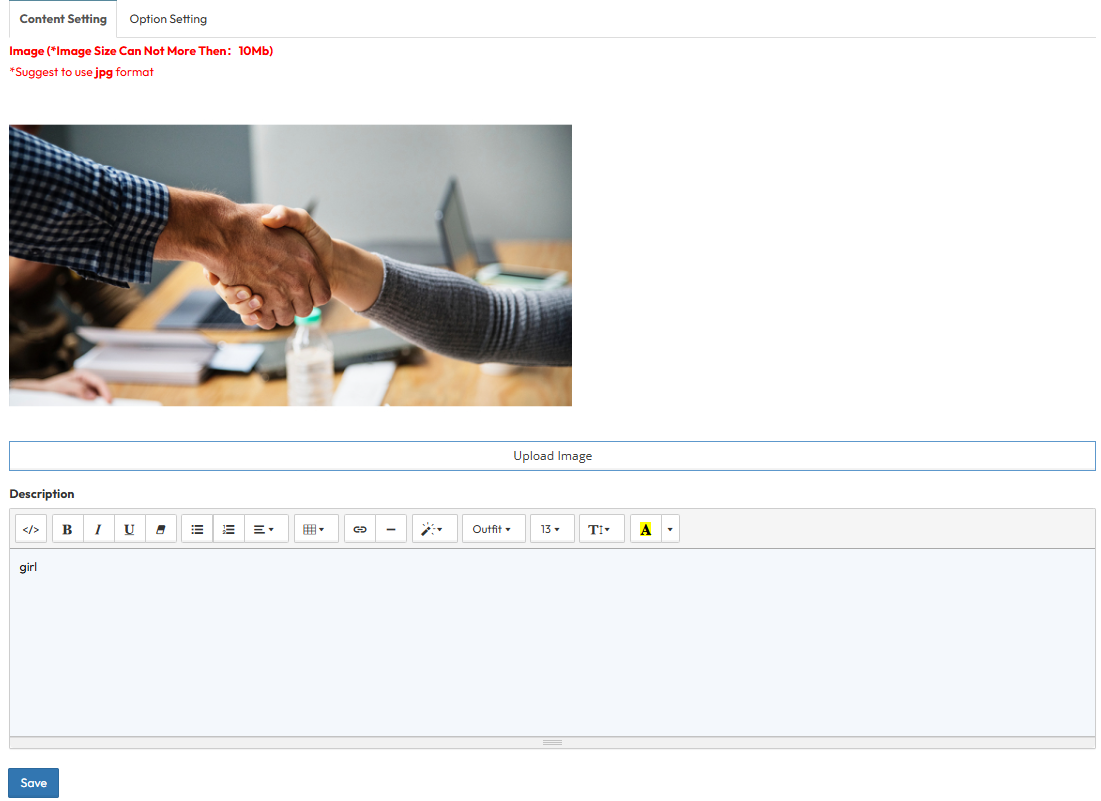
Step 1: Customized Breadcume (Content Settings)
Configure the visual elements for your page header.Image : Upload a background image for the header area. This image will span the width of the section.
Description : Enter the main text to appear over the image. This typically serves as a short sub-headline explaining the page content.
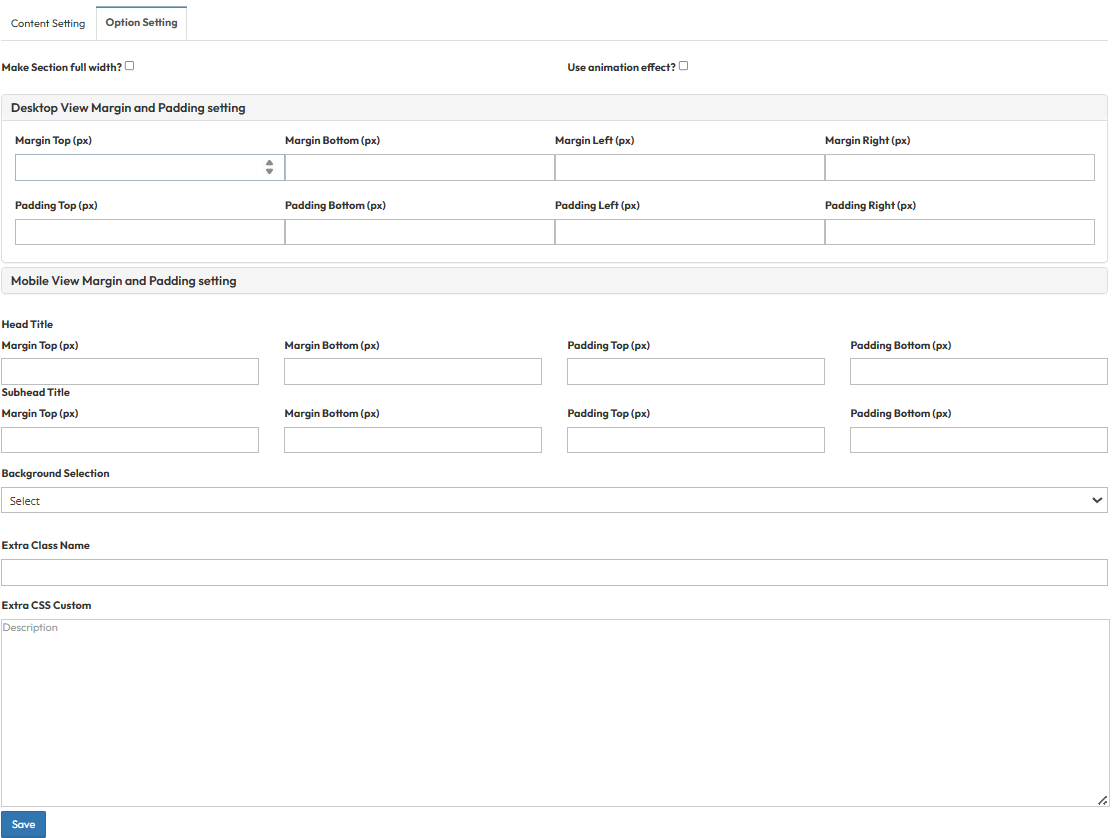
Step 2: Global Option Setting
- Make Section full width?
- Stretches content to the screen edges.
- Use animation effect?
- Enable fade-in or slide-up animations when scrolling to this section.
- Desktop View Margin and Padding:
- Adjust external (Margin) and internal (Padding) spacing for Top/Bottom and Left/Right.
- Mobile View Margin and Padding:
- Adjust spacing values specifically for mobile devices.
- Head Title & Subhead Title:
- Adjust the spacing (Margin) above and below the Main Title and Subtitle text.
- Background Selection:
- Default: Uses the standard site background.
- Background Color: Fills the section with a solid color.
- Background Image: Upload an image (Recommended size: 1920x500px).
- Parallax Effect?: Toggle Yes to create a 3D scrolling effect.
- Background Image with Color: Combines an image with a colored overlay.
- Opacity (1-0.1): Controls the overlay strength (1 = Solid color, 0.1 = Mostly image).
- Extra Class Name:
- Enter a custom CSS class name for specific styling.
- Extra CSS Custom:
- Paste custom CSS code to override default styles.