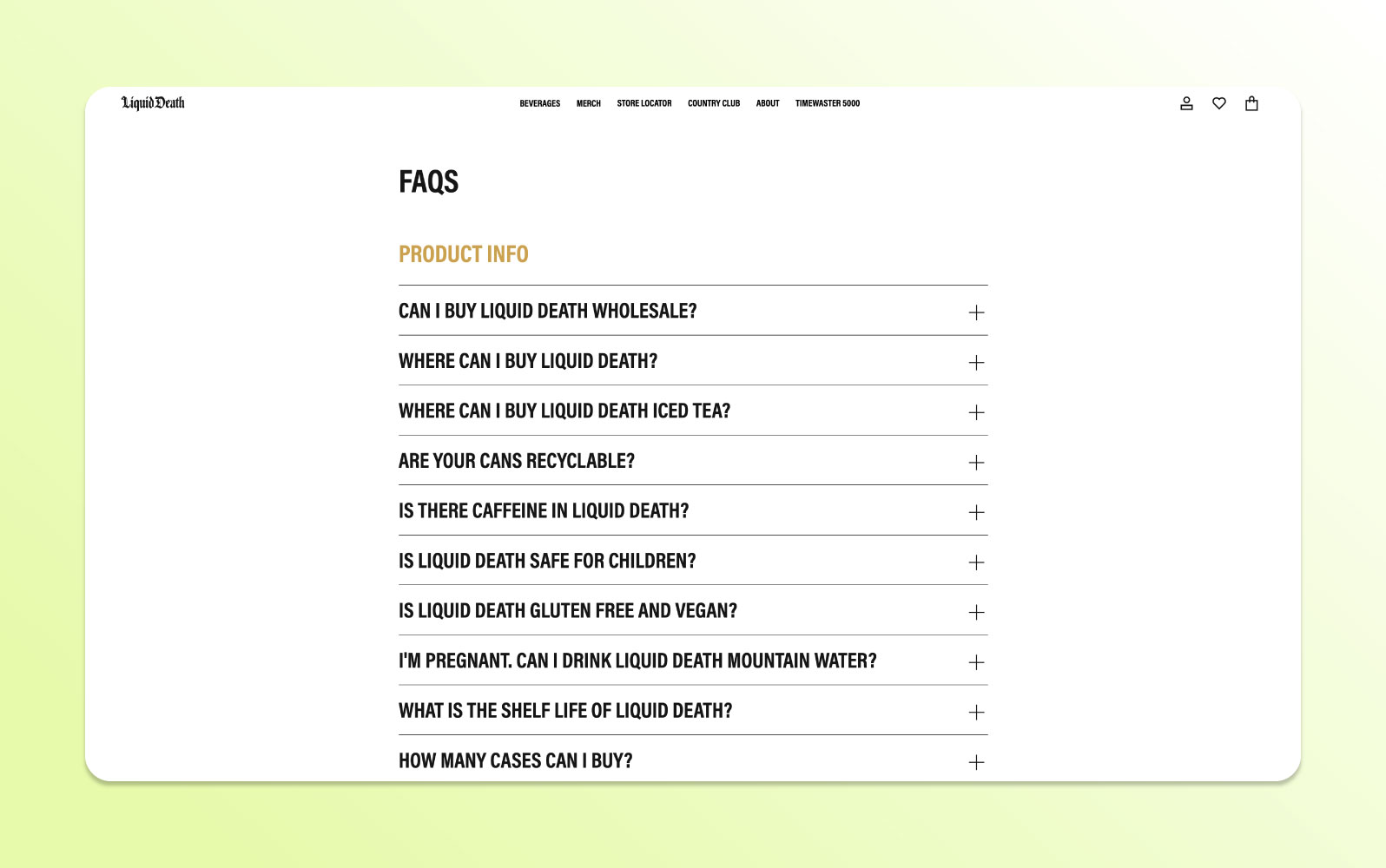
Part 1: FAQ Overview
Section Type: Frequently Asked QuestionsThis section displays a list of questions and answers to help users find quick solutions. It is an essential tool for improving user experience by providing instant support and reducing repetitive inquiries.
Part 2 : Content Settings
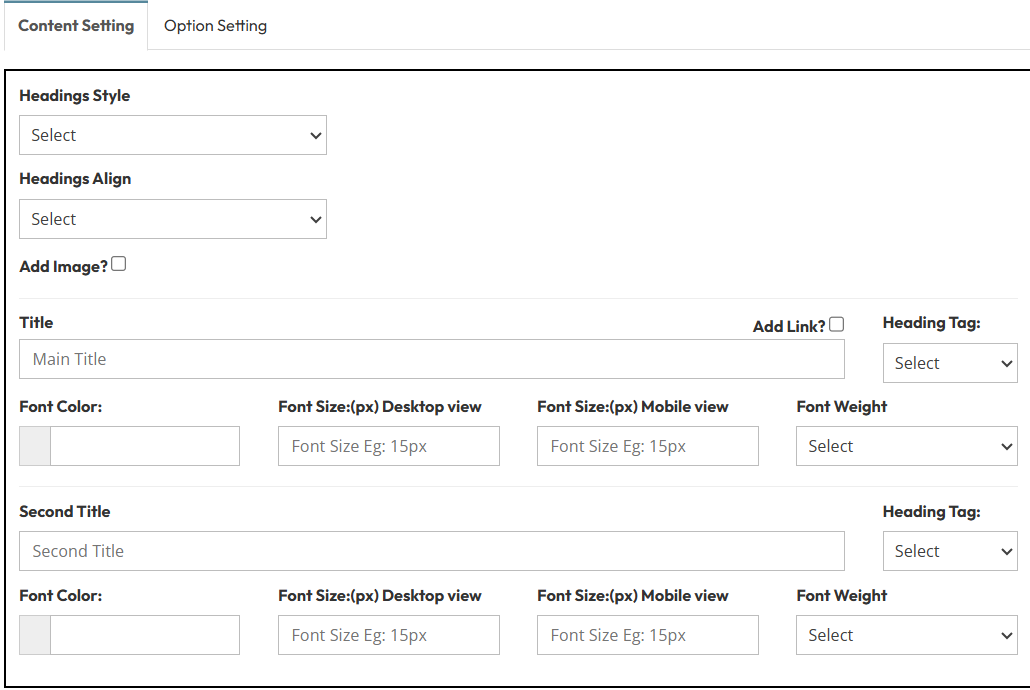
Configure the main headings and top image for the section.- Headings Style: Select a design style (Style 1 - 8).
- Style 1: Subtitle above, Title below.
- Style 2: Title above, Subtitle below.
- Style 3: Heading block with a colored line and subtitle inside the block.
- Style 4: Left-aligned vertical line, followed by the Title block and Subtitle below.
- Style 5: Double Border Title.
- Style 6: Single Border Title.
- Style 7: Border Color Title (Frame around title).
- Style 8: Title with a colored bottom border.
- Headings Align: Choose text alignment (Left, Center, Right).
- Add Image?:
- Toggle to add an image above the main title.
- Image Display Position: Select position (Top, Center, Bottom).
- Main Title & Second Title:
- Heading Tag: Select the HTML tag (e.g., H1-H6, P).
- Font Color & Size: Set colors and pixel sizes for Desktop and Mobile views.
- Font Weight: Select thickness (e.g., Bold, Normal).
Part 3: FAQ Form & Styles
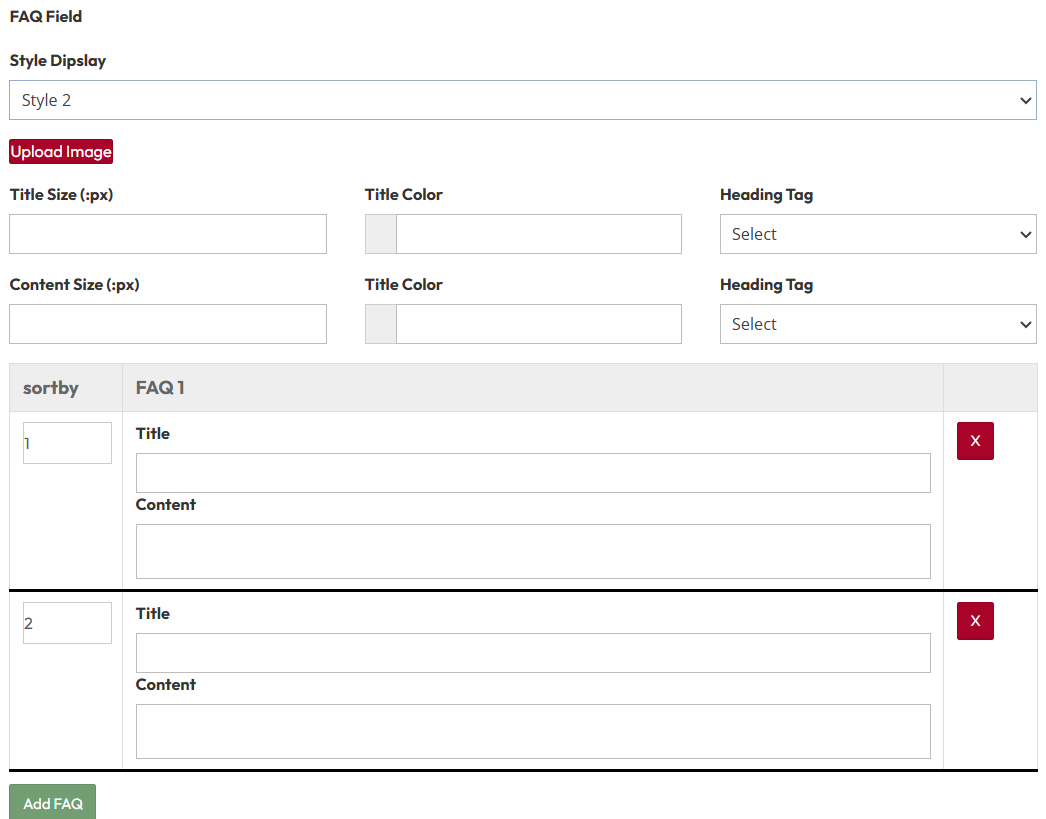
Select the layout style and input your specific questions and answers.FAQ Field Settings:
- Style Display: Choose the layout design (Style 1, Style 2, or Style 3).
- Upload Image: Upload a specific image if required by the selected style.
- Title Typography: Set the font size, color, and heading tag for the Questions.
- Content Typography: Set the font size, color, and heading tag for the Answers.
FAQ Table (Adding Items):
- FAQ Item:
- Title: Enter the question (e.g., "What is your return policy?").
- Content: Enter the answer text.
Part 4: Global Option Setting
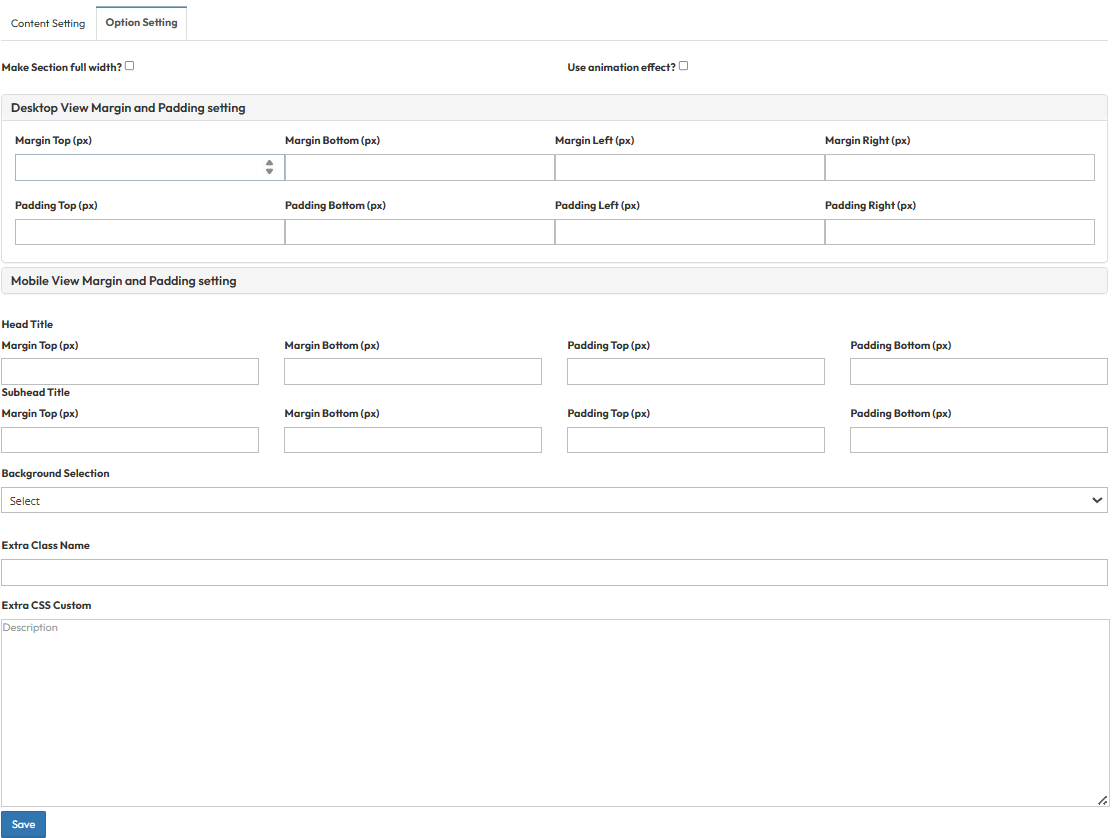
Make Section full width?
- Stretch content to the screen edges.
Use animation effect?
- Enable fade-in or slide-up animations when scrolling to this section.
Desktop View Margin and Padding setting
- Adjust external (Margin) and internal (Padding) spacing for Top/Bottom and Left/Right to control layout distances.
Mobile View Margin and Padding setting
- Adjust spacing values specifically for mobile devices to fit smaller screens.
Head Title & Subhead Title
- Adjust the spacing (Margin) above and below the Main Title and Subtitle text.
Background Selection
- Default: Uses the standard site background (usually transparent or white).
- Background Color: Fills the section with a solid color of your choice.
- Background Image: Upload an image (Recommended size: 1920x500px).
- Parallax Effect? Toggle Yes to create a 3D scrolling effect where the background moves slower than the content.
- Background Image with Color: Combines an image with a colored overlay.
- Opacity (1-0.1): Controls the overlay strength.
- 1 = Fully opaque (Solid color, image hidden).
- 0.1 = Very transparent (Mostly image).
Extra Class Name
- Enter a custom CSS class name to apply specific styles.
Extra CSS Custom
- Paste custom CSS code here to override default styles for this section.