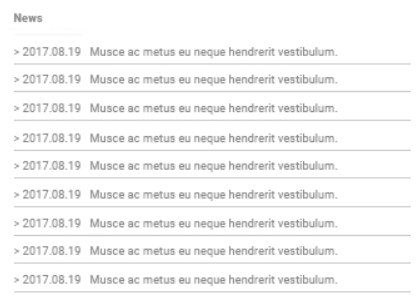
Part 1: News List Overview
Section Type: News ListThis section creates a dynamic feed that automatically pulls news articles. It displays them in a structured list format, typically featuring a post date, image, and description for each article.
Best for:
- Company Blog & Updates: Use this to share the latest company news, internal updates, or stories in a centralized location.
- Industry News: Perfect for curating and displaying relevant industry trends or external news feeds on your site.
Part 2 : How to Configure Your Section
Our backend system provides a comprehensive set of tools to customize your content blocks. Follow these steps to set up your layout perfectly:
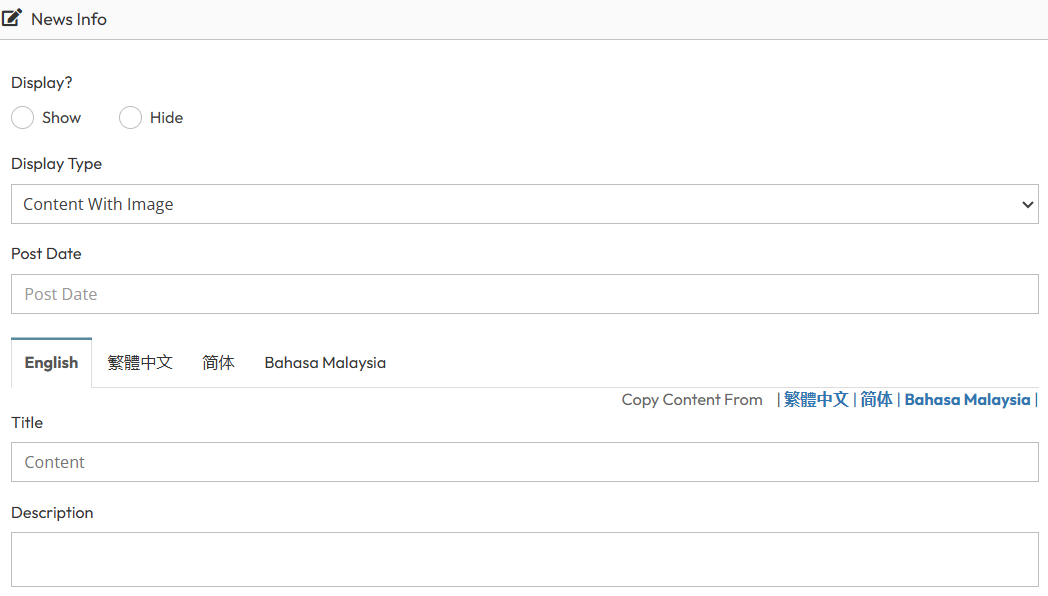
Step 1 : News Info (Data List Manage)
- Display?: Toggle to Show or Hide the specific news item.
- Display Type: Select "Content With Image" (Only one).
- Post Date: Set the publication date.
- Languages: Input content for English, 繁体中文, 简体, and Bahasa Malaysia.
- Title: Enter the main headline for the slide.
- Description: Enter the supporting text.
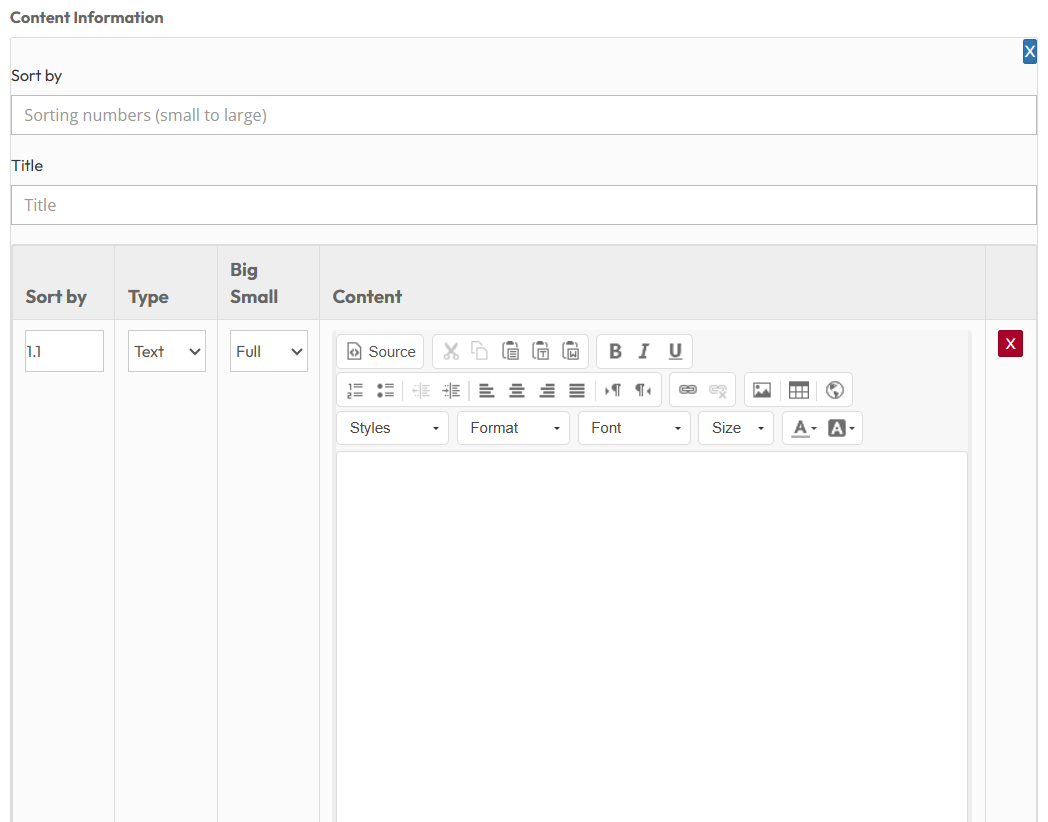
Step 2: New Lists (Content Information)
Configure how the list appears on the front-end page.- Sort by: Select "Sort Numbers" to arrange items based on their assigned priority numbers. (Items with a lower number will appear at the top).
- Title: Enter the main heading for this News List section .
- Type: Choose the visual layout style for the list items.
- Text: Displays text only.
- Image: Displays a featured image with text.
- Youtube: Displays a video embed with text.
- Big Small: Select "Full" to stretch the news items to utilize the full width of the container.
- Content: Enter any short description to display above the news list items.
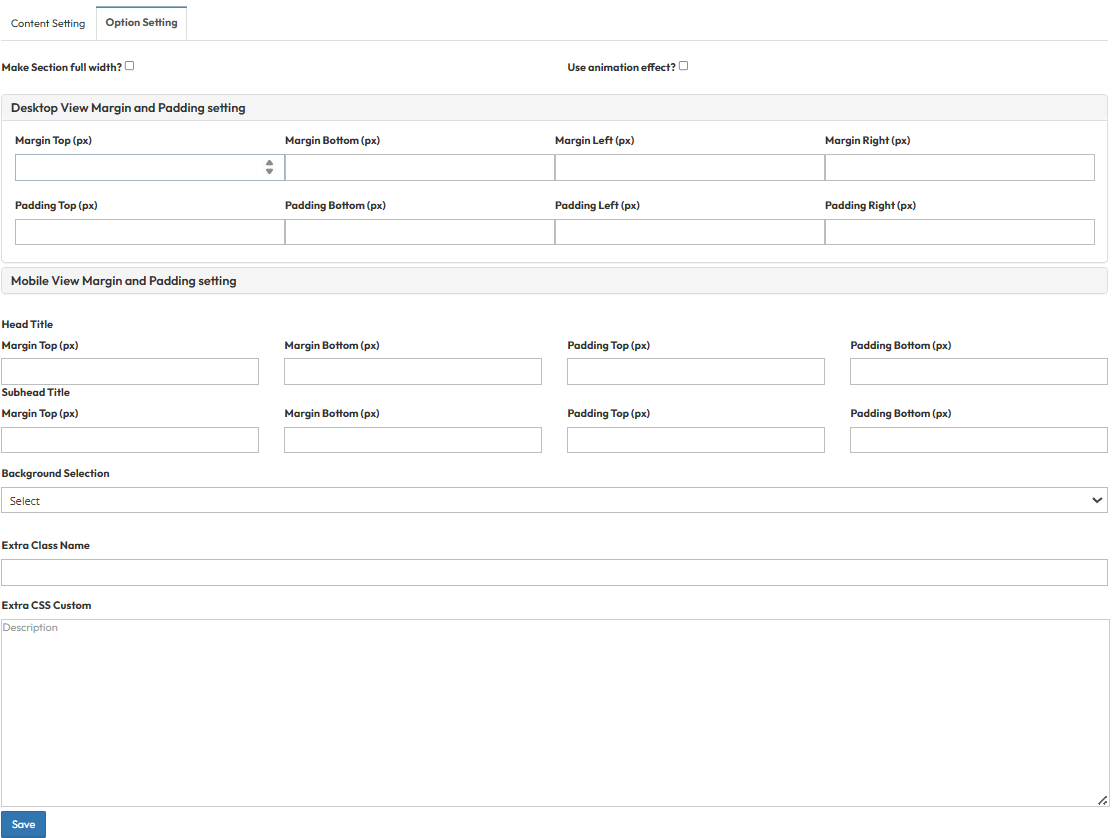
Step 3: Global Option Setting
Control the layout container, spacing, and background design.- Make Section full width?
- Stretches content to the screen edges.
- Use animation effect?
- Enable fade-in or slide-up animations when scrolling to this section.
- Desktop View Margin and Padding:
- Adjust external (Margin) and internal (Padding) spacing for Top/Bottom and Left/Right.
- Mobile View Margin and Padding:
- Adjust spacing values specifically for mobile devices.
- Background Selection:
- Default: Uses the standard site background.
- Background Color: Fills the section with a solid color.
- Background Image: Upload an image (Recommended size: 1920x500px).
- Parallax Effect?: Toggle Yes to create a 3D scrolling effect.
- Background Image with Color: Combines an image with a colored overlay.
- Opacity (1-0.1): Controls the overlay strength (1 = Solid color, 0.1 = Mostly image).