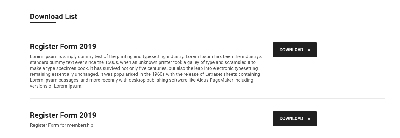
Part 1: Attachment Download List Overview
Section Type: Attachment Download ListThis section creates a centralized hub for users to access downloadable resources. It displays a list of files organized by groups, allowing visitors to easily access documents, media, or software without navigating away from the page.
Common Use Cases:
- Support Centers: Organize User Manuals and Troubleshooting Guides.
- Business Profiles: Provide Company Profiles, Contracts, or Invoices.
- Marketing Kits: Offer Brand Assets, Logos, and Presentation Decks.
Part 2 : How to Configure Your Section
Our backend system provides a comprehensive set of tools to customize your content blocks. Follow these steps to set up your layout perfectly:
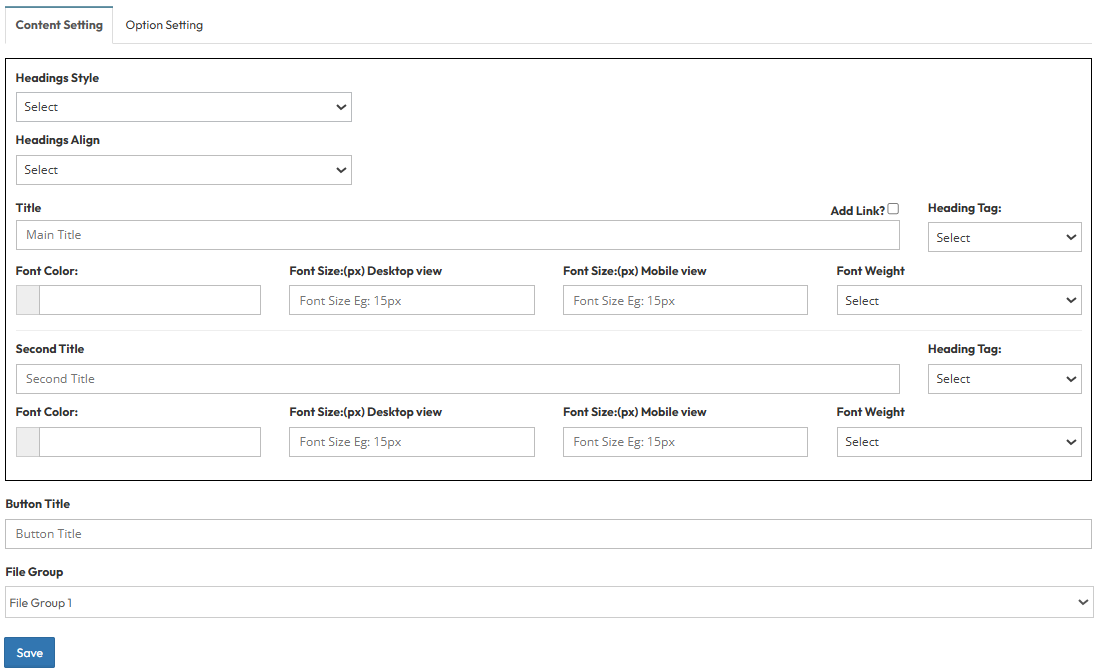
Step 1: Attachment List Configuration (Content Settings)
Configure the header styling and manage your file groups using the settings below.A. Headings Configuration
- Headings Style: Select a heading theme (Options: Style 1 - 8).
- Headings Align: Set the heading position (Options: Left, Center, Right).
B. Typography Settings
Settings below apply to both Main Title and Subtitle:
- Heading Tag: Select the semantic HTML tag (H1–H6) for SEO structure.
- Font Color: Pick the text color (e.g., #000000).
- Font Size: Define specific pixel sizes for Desktop and Mobile views independently.
- Font Weight: Select the font thickness (e.g., Normal, Bold).
C. File Management :
- Button Label: Enter the text displayed on the action button next to each file (e.g., "Download").
- File Group: Select a specific group of files to display in this section. (To create or edit file groups, see Step 2).
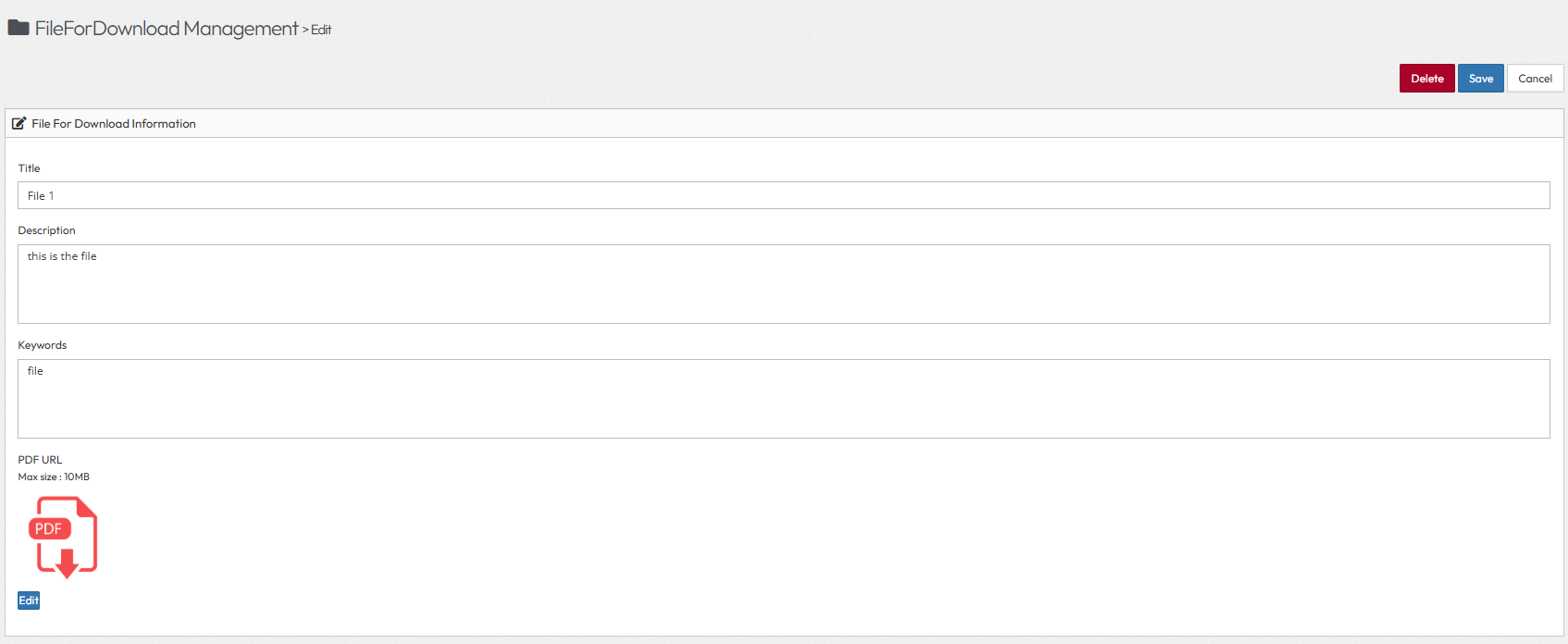
Step 2 : File For Download Management
Before you can select a "File Group" in the step above, you must create the data in the backend.
Step 1: Click Data List > File For Download > File List
Step 2: Go to the File List tab and upload your files (e.g., "File").
Step 3: Go to the Group List tab and create your categories (e.g., "File group 1"), assigning them to the "File" group you just made.
Step 4: Saving the progress and return to previous section settings to select those groups.
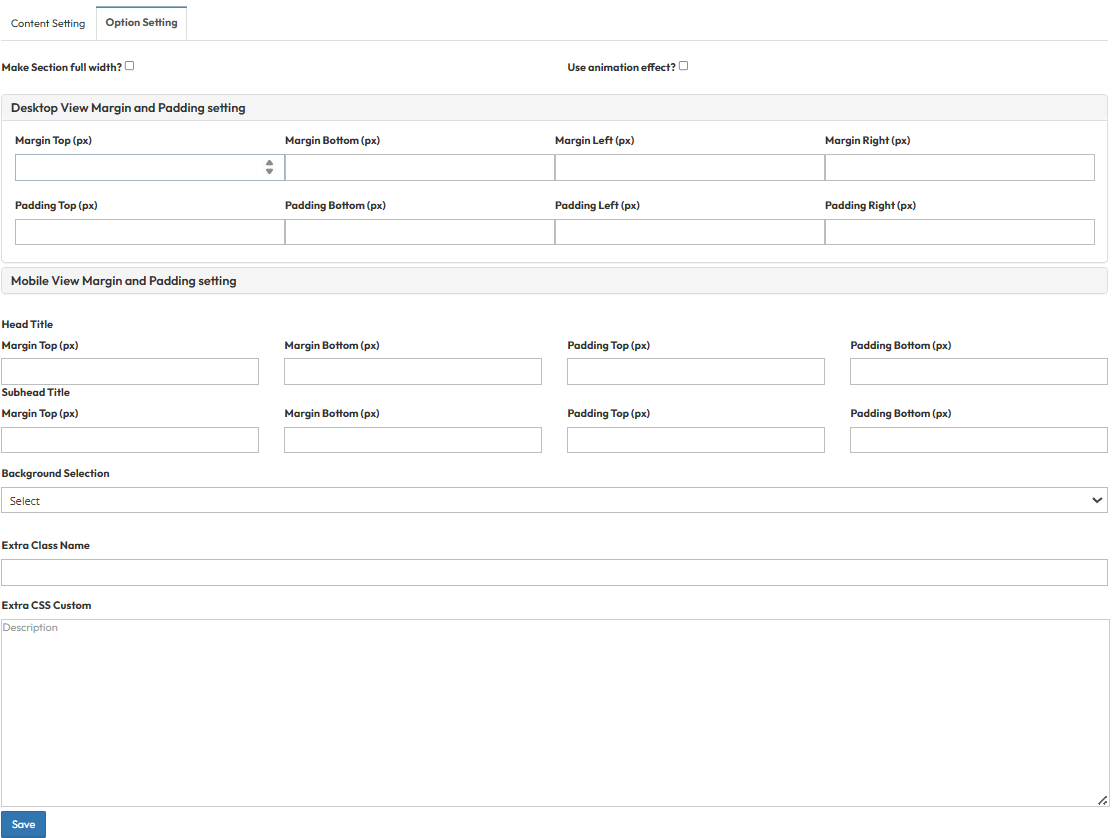
Step 3: Option Setting
- Make Section full width?
- Stretch content to the screen edges.
- Use animation effect?
- Enable fade-in or slide-up animations when scrolling to this section.
- Desktop View Margin and Padding setting
- Adjust external (Margin) and internal (Padding) spacing for Top/Bottom and Left/Right.
- Mobile View Margin and Padding setting
- Adjust spacing values specifically for mobile devices to fit smaller screens.
- Head Title & Subhead Title
- Adjust the spacing (Margin) above and below the Main Title and Subtitle text.
- Background Selection
- Default: Uses the standard site background.
- Background Color: Fills the section with a solid color of your choice.
- Background Image: Upload an image (Recommended size: 1920x500px).
- Parallax Effect? Toggle Yes to create a 3D scrolling effect where the background moves slower than the content.
- Background Image with Color: Combines an image with a colored overlay.
- Opacity (1-0.1): Controls the overlay strength (1 = Solid color, 0.1 = Mostly image).
- Extra Class Name
- Enter custom CSS class name.
- Extra CSS Custom
- Enter custom CSS code.