Part 1 : Whatsapp Form overview
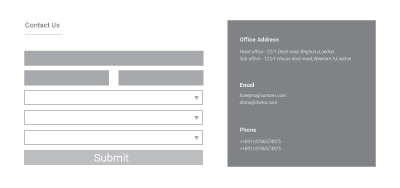
Section Type: Whatsapp FormA lead-generation form layout that collects user information before redirecting them to a WhatsApp conversation. This ensures you capture essential details (like Email , Tel) instantly.
Part 2: How to Configure Your Section
Our backend system provides a comprehensive set of tools to customize your content blocks. Follow these steps to set up your layout perfectly:
Step 1: WhatsApp Form content field (Content Settings)
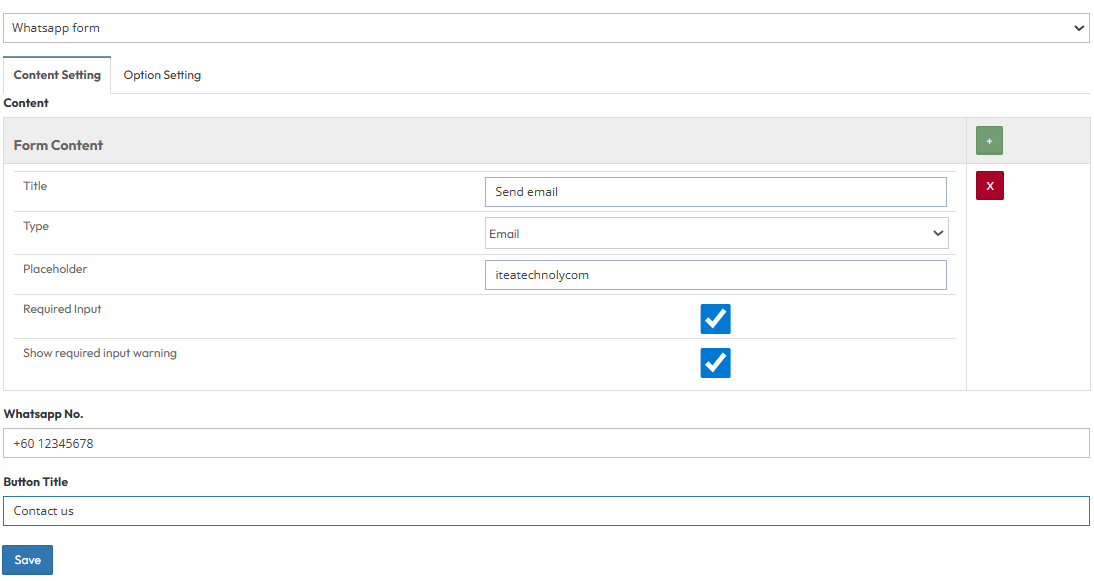
Form Content :
- Title: Enter the label for the input field.
- Type: Select the format of the data to be collected (e.g., Email, Text, Tel and etc.).
- Placeholder: Enter the helper text that appears inside the input box before the user types .
- Required Input: User must fill this field before proceeding.
- Show Required Input Warning: Display a warning message if the user tries to submit the form empty.
WhatsApp No : Enter the phone number that will receive the message. (e.g. +601 234 5678)
Button Title: Enter the text that will appear on the submit button. (e.g. "Contact us".)
Step 2: Global Option Settings
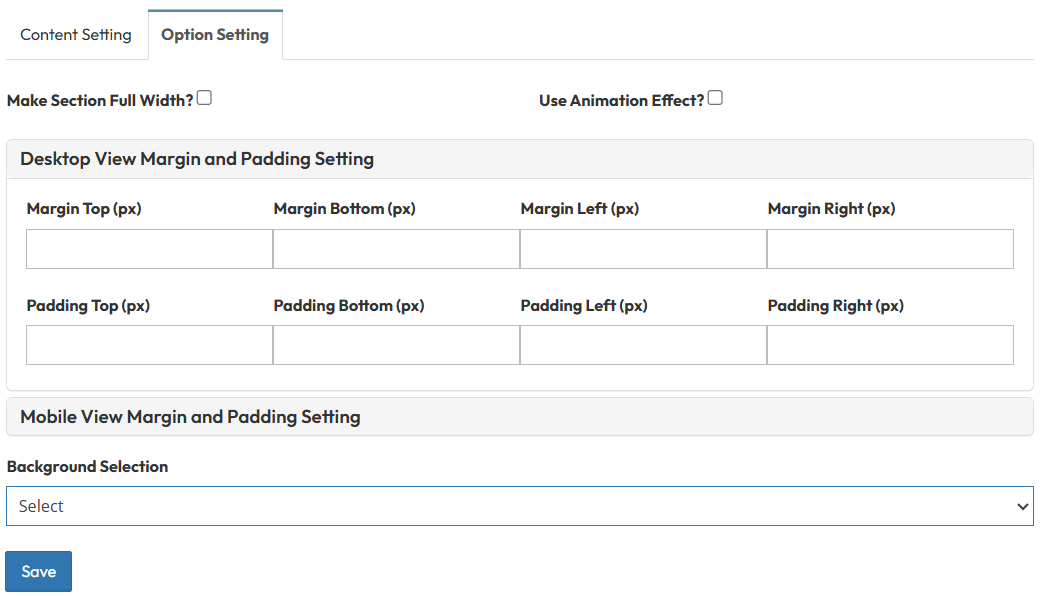
These settings control the layout container and spacing.Make Section full width?
- Stretch content to screen edges.
Use animation effect?
- Enable scroll animations.
Desktop View Margin and Padding setting
- Adjust external (Margin) and internal (Padding) spacing for Top/Bottom and Left/Right to control layout distances.
Mobile View Margin and Padding setting
- Adjust spacing values for mobile view.
Head Title & Subhead Title
- Control spacing above and below the titles.
Background Selection
- Select the background style: Default, Background Color, Image, or Combined (Background Color & Image).